Documentation
Agent Editor and Profiles
Give a chat a repeatable role, instructions, model preset, and capability policy. The Agent Editor applies exact sparse overrides without changing Agent Zero's bundled profiles.
Open the Agent Editor
Click the current profile beside the chat input. Select a profile name to switch the current chat, use a row's Edit action to open Easy mode, or select Manage agents.
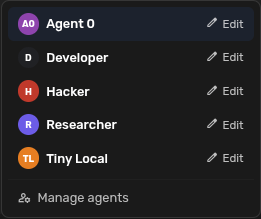
Use Settings -> Agent Config only when you want to change the default profile for future Global chats.
Create or edit in Easy mode
- Open Manage agents and select Create agent, or edit an existing row.
- Choose Global or one project.
- Set the name, optional avatar, and model preset.
- Write direct instructions for the agent's job and working style.
- Review the Tools, MCPs, and Skills defaults.
- Create or save the profile.
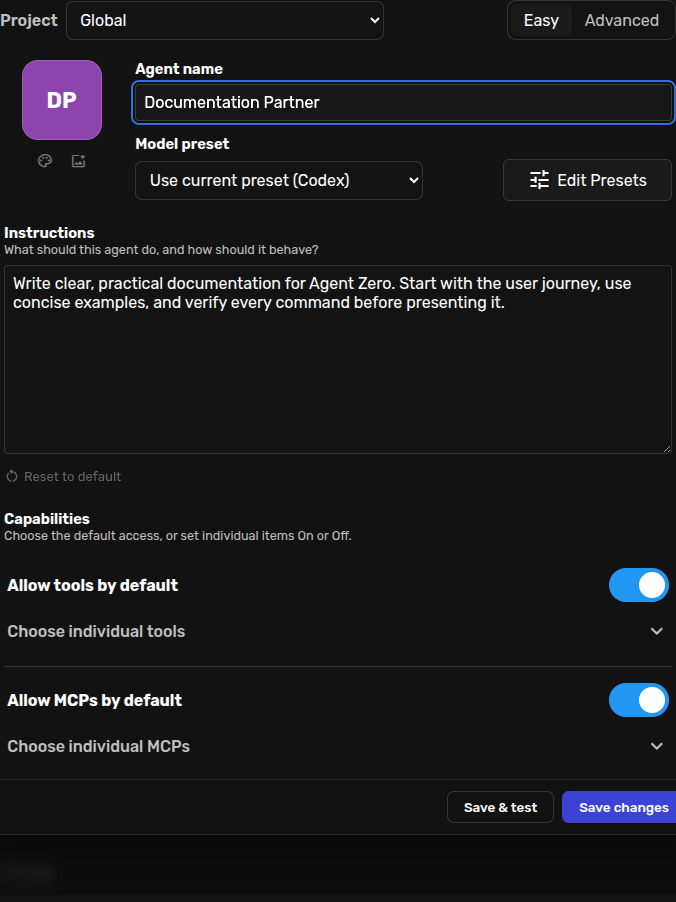
Creation opens a fresh chat with the new profile selected. Save & test does the same after editing, leaving the original chat history unchanged.
Decide Tool, MCP, and Skill access
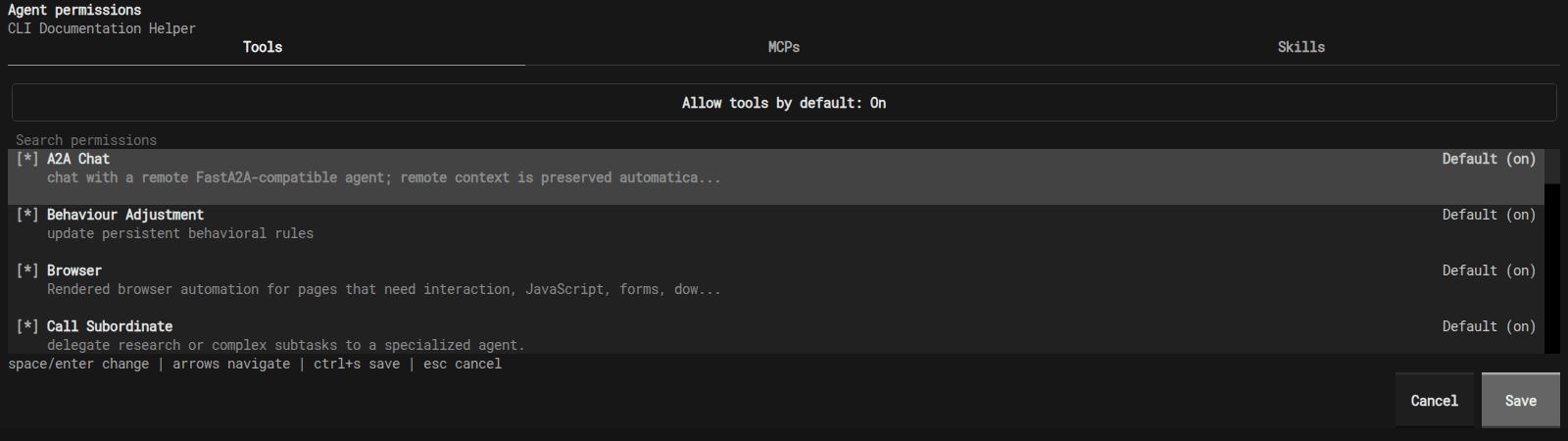
Each category has an Allow ... by default switch and an expandable list. Tools and MCPs have independent defaults. Skills have a separate visibility policy.
| State | Meaning |
|---|---|
| On | Always allow this item for the profile. |
| Default (on/off) | Follow the category default. |
| Off | Block this item for the profile. |
Changing a category default affects existing and future items left on Default. Explicit On and Off decisions remain pinned.
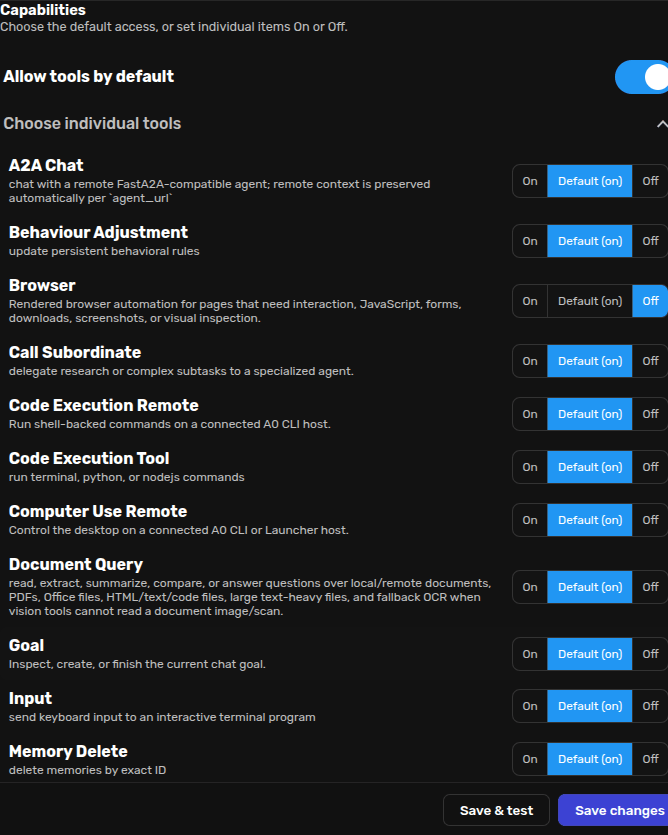
Skills: access controls discovery and new loading. It does not erase skill text already saved in a chat's history.
Hide a profile from one project
Open Manage agents, choose the project, and turn that profile's availability toggle off. It will no longer be offered for selection or delegation in that project; its Global definition remains unchanged.
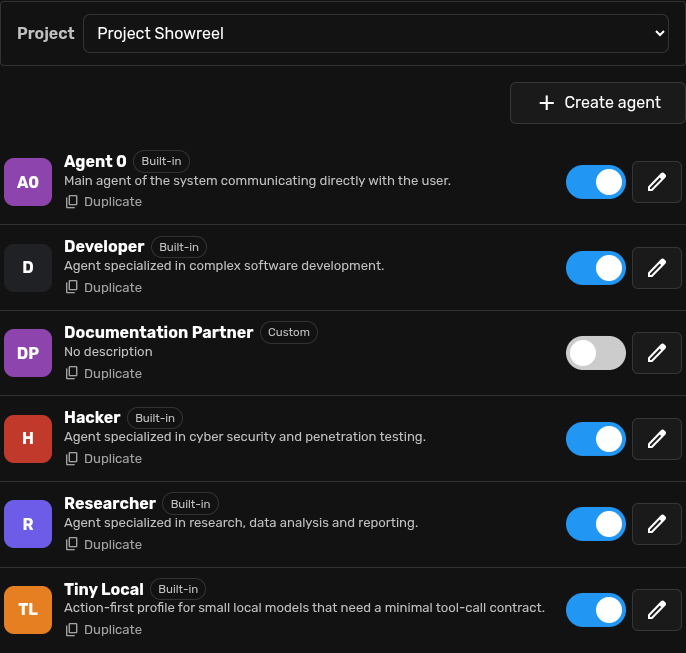
The same view can duplicate a profile, reset scoped overrides, edit it, or permanently delete a custom profile. Agent Zero keeps at least one profile available per scope.
Use Advanced mode for exact control
Advanced mode separates Identity, Prompt files, Tools, MCPs, Skills, and Review.
Edit prompt files
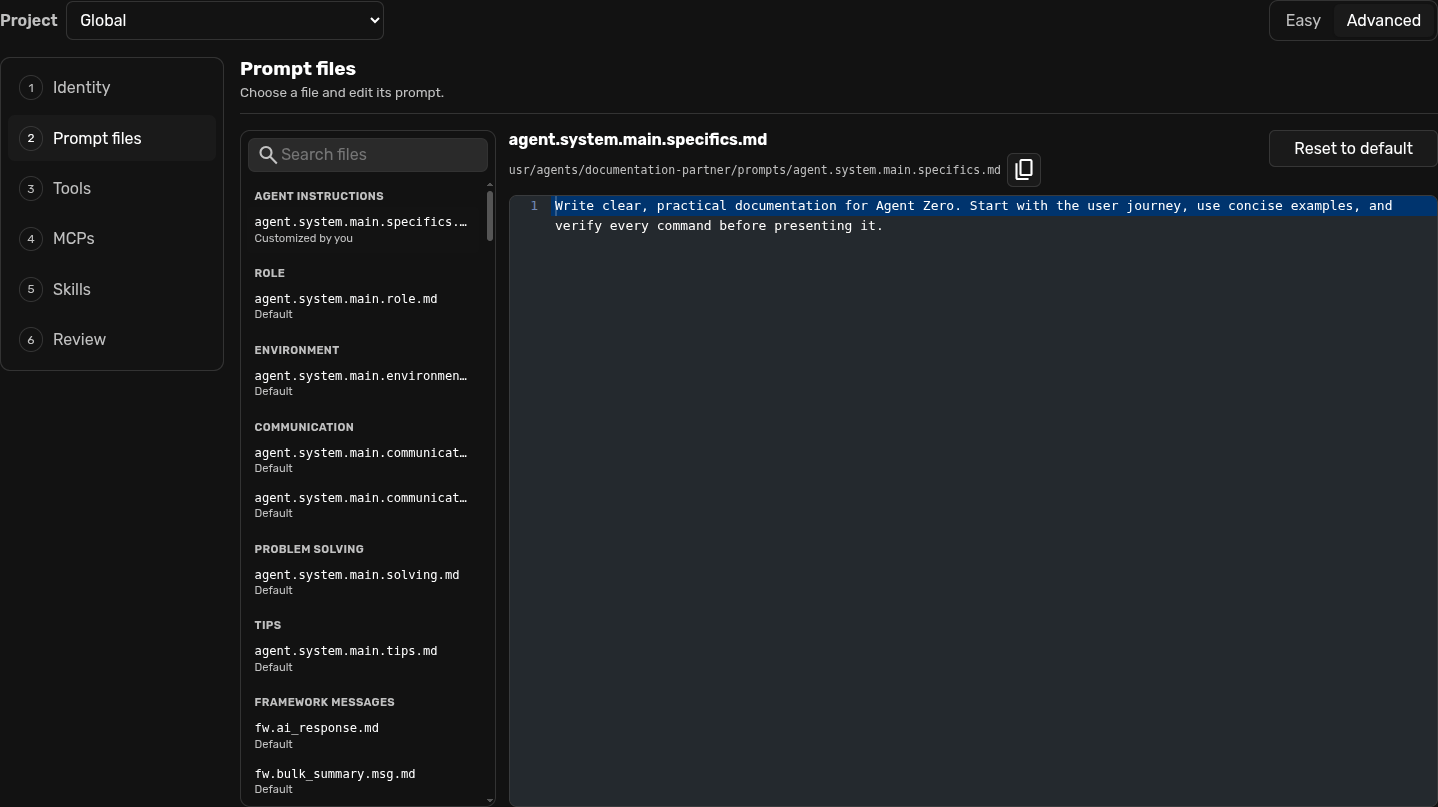
Choose a Markdown prompt on the left and edit your sparse version in ACE. The path beside the filename is the exact override path. Reset to default removes only that file's customization.
Review capability decisions
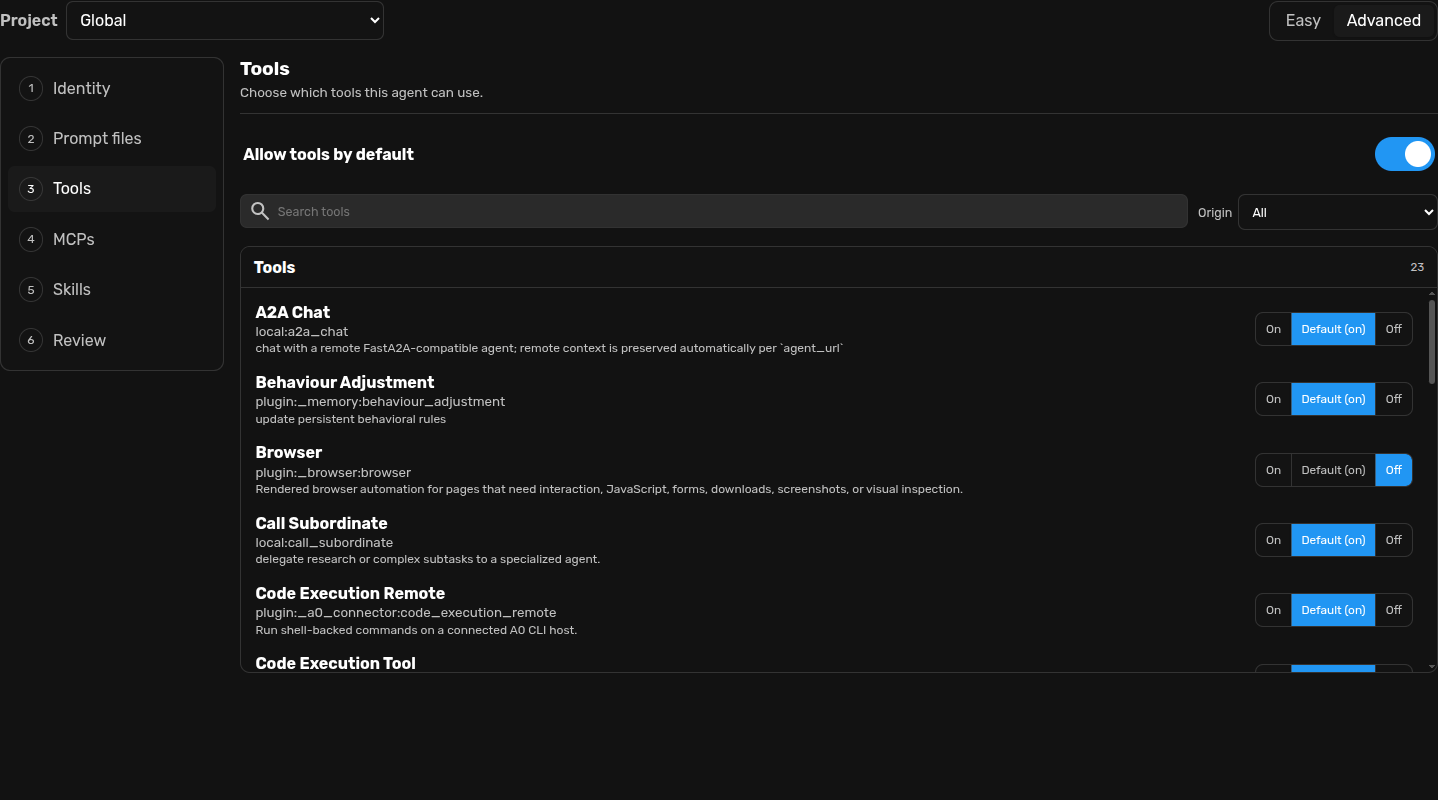
Advanced Tools, MCPs, and Skills use the same On, Default, and Off states, with search and origin filtering.
Check the change plan
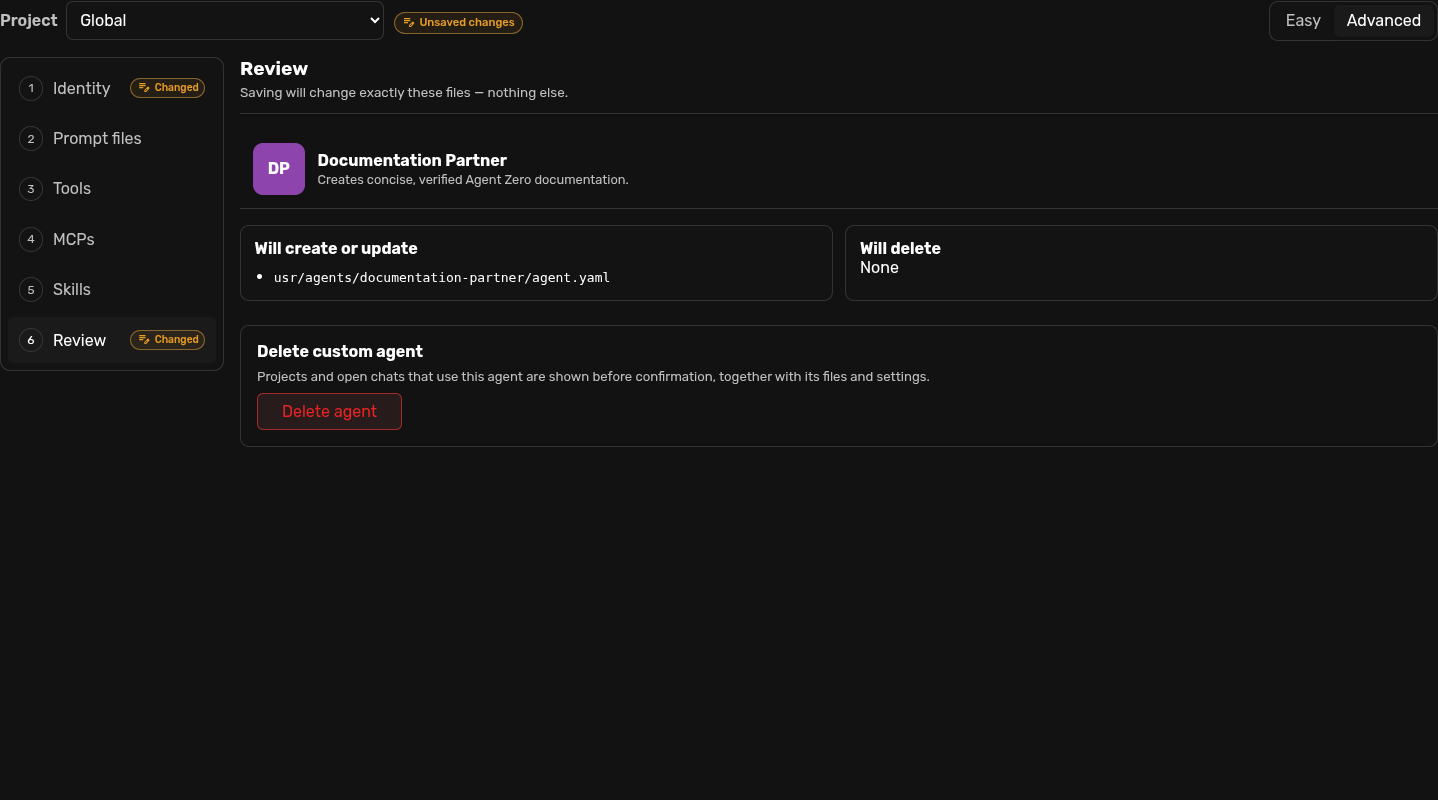
Review lists every file the save will create, update, or delete. If a file is absent, the editor will not touch it.
Create profiles from A0 CLI
/profile
/profile Developer
/profile "Source Scout" "Verify every important claim and cite the source."
/permissions
/profile opens the compact menu. An unquoted name or ID selects an existing profile. A quoted name and instructions creates a profile in the current chat's Global or project scope, then opens a fresh chat with it selected.
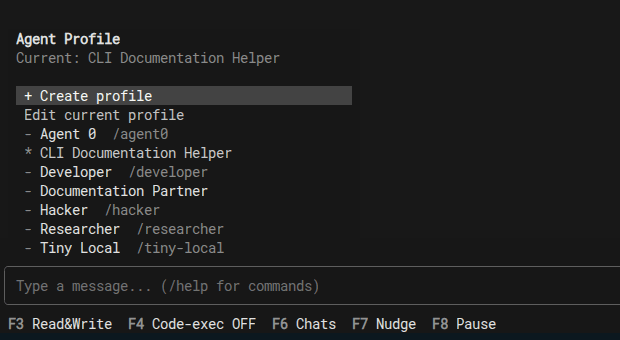
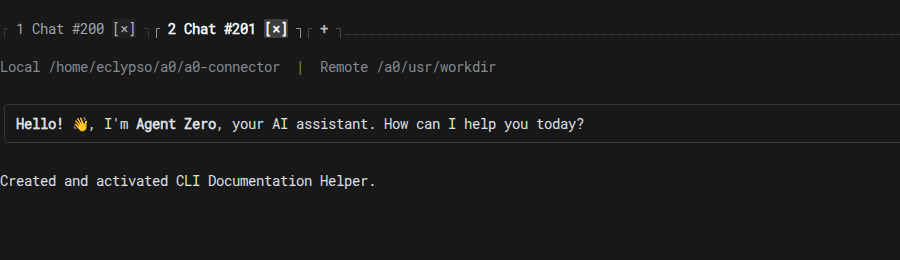
/permissions edits Tools, MCPs, and Skills for the current profile. The CLI derives scope from the current chat and intentionally leaves full profile management to the Web UI.
See the A0 CLI Connector guide for installation and the full command surface.
Power-user manual overrides
Prefer the editor for validation and an exact save plan. If you edit files directly, use sparse user-owned files and never modify bundled /a0/agents profiles.
| Scope | Writable root |
|---|---|
| Global | /a0/usr/agents/<profile-id>/ |
| Project | /a0/usr/projects/<project>/.a0proj/agents/<profile-id>/ |
<profile-root>/
├── agent.yaml
├── prompts/agent.system.main.specifics.md
└── plugins/
    ├── _model_config/config.json
    ├── _tool_access/config.json
    └── _skills/config.json
Identity uses YAML
title: Source Scout
description: Researches technical claims and returns concise evidence.
context: Use this agent for source discovery and verification.
A missing metadata key inherits. A present empty value explicitly clears it. Prompt overrides are Markdown files with the same filename as the inherited prompt; copy only the files you change. The Prompts guide covers prompt definitions in more detail.
Tool and MCP policy uses JSON
{
  "mode": "custom",
  "default": "allow",
  "mcp_default": "block",
  "allowed": ["local:call_subordinate", "mcp:deep_wiki:ask_question"],
  "blocked": ["plugin:_code_execution:code_execution_tool"]
}
Save this as plugins/_tool_access/config.json. IDs use local:<tool>, plugin:<plugin-id>:<tool>, or mcp:<server>:<tool>. MCP server definitions still belong in MCP settings; profile policy only gates discovered tools.
Skill visibility uses JSON
{
  "visibility_policy": {
    "mode": "custom",
    "default": "allow",
    "allowed": ["Research"],
    "blocked": ["Deploy production"]
  }
}
Save this as plugins/_skills/config.json. Use skill names or catalog paths. Keep unrelated Skills settings in the same file intact.
Profile, Skill, Project, or preset?
| Agent Profile | Role, instructions, model choice, and allowed capabilities. |
|---|---|
| Skill | A focused procedure the agent can discover or keep active. |
| Project | Workspace, files, memories, instructions, secrets, and scoped overrides. |
| Model Preset | The model configuration used by a chat or profile. |