Welcome back to How the hell do I... with Agent Zero. In Part 1 we sorted out the plugin junk drawer. This time we tackle the feature people use every day, half-configure, and never quite trust: Projects.
If you have ever typed "remember, we are working in the api/ folder, use the client's tone, and do not touch main" into a fresh chat for the fourth time this week, this one is for you.
The problem: every chat starts with amnesia
A new chat in Agent Zero knows the framework, knows your global settings, and knows nothing about what you are working on. So you re-explain. You paste paths. You paste style rules. You paste the same warning about credentials. Two chats later the agent is helping with a different client and cheerfully applies the wrong rules to the wrong repository.
Projects fix this by answering one question before the first message is ever sent: what world is this chat living in?
The official one-liner is exactly that: Projects tell Agent Zero what world it is working in. A project is a workspace with its own purpose, instructions, files, memory, secrets, skills, MCP servers, agent profiles and model choices. Activate it on a chat and every one of those follows the chat around. Deactivate it and they all leave again.
Here is how the hell you use it properly.
What a project actually is (the 60-second version)
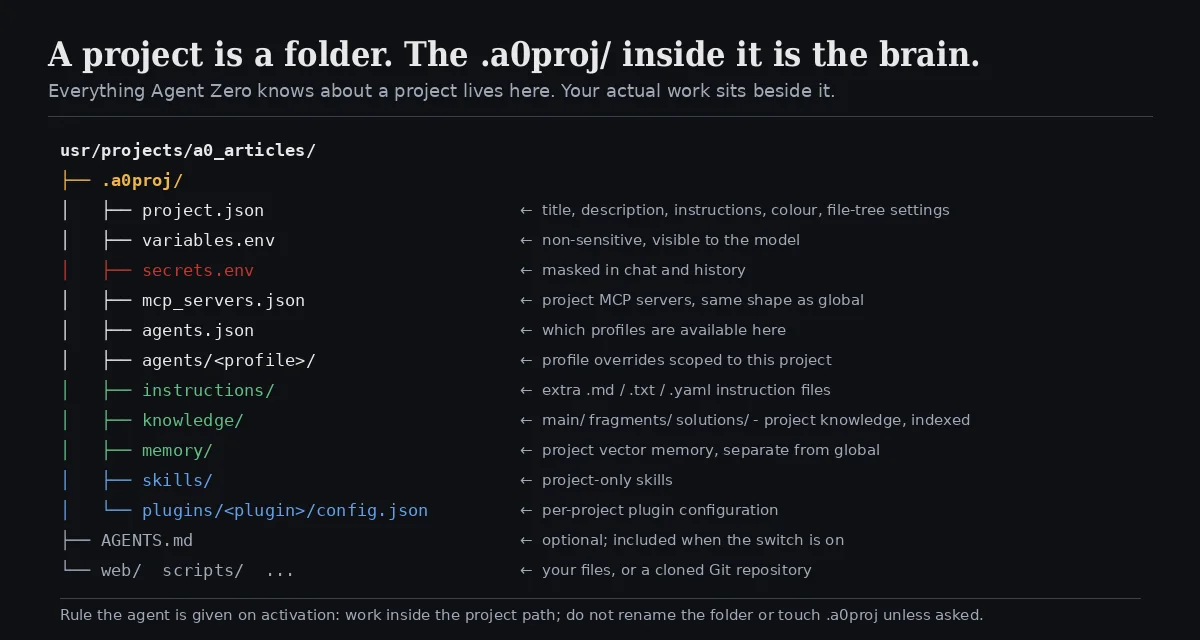
A project is a folder. That is the whole trick. It lives at usr/projects/<name>/, and inside it sits a hidden .a0proj/ directory that holds everything Agent Zero knows about the project. Your actual work, a cloned repository, your notes, whatever, sits beside it.
Because it is a folder, three good things are true at once:
- It is portable and inspectable. You can open
.a0proj/project.jsonand read the instructions you wrote. You can back it up, move it, or drop it into another Agent Zero. - It is the source of truth for every surface. The WebUI, the Launcher and the A0 CLI all read the same folder. There is no separate "CLI project".
- The agent is told to respect it. The moment a project is active, the system prompt gains a rule: work inside the project path; do not rename the project dir or change
.a0projunless asked.
One thing to burn into memory: the project is not the chat. Each chat picks a project. Many chats can share one project, one chat can switch between projects, and a project keeps existing when every chat that used it is gone.
Step 1: Create one
From the dashboard click Projects. If you have none yet, the list is empty and offers Create project. Click it and you get the basics:
| Field | What it is for |
|---|---|
| Title | What you will recognise later in the picker. Visible to you and to the agent. |
| Description | "What is this project?" Also visible to the agent, so make it honest and short. |
| Color | A dot that marks the project in cards and the top bar. Purely for you. |
| Git Repository (optional) | Paste an HTTPS Git URL and Agent Zero clones it into the project folder. |
| Access Token (optional) | Appears only when a Git URL is present. Used once for the clone and never stored. |
The button reads Create and continue for an empty project and Clone and continue when a Git URL is present. Either way, you land on the edit screen next.
For a Git project the Basic info tab grows a Git Status card showing the repository, the current branch, whether the tree is clean or has uncommitted changes, and the last commit. It is a small thing, but it means you can glance at the project before you glance at the terminal.
Step 2: Write instructions that earn their tokens
The Instructions field is the heart of a project. The docs draw the line cleanly:
Description answers: "What is this project?" Instructions answer: "How should Agent Zero behave when this project is active?"
Do not put the second in the first. A good set of instructions is short, specific and operational:
You are working inside the Docs Example Workspace.

When this project is active:
- Explain steps in plain language before technical detail.
- Prefer screenshots, checklists, and concrete examples.
- Keep generated files inside this project unless I ask otherwise.
- Ask before using credentials, private data, or external accounts.
That is enough. A project prompt does not need to be a constitution. Start small and add a line every time you notice the agent doing something you did not want.
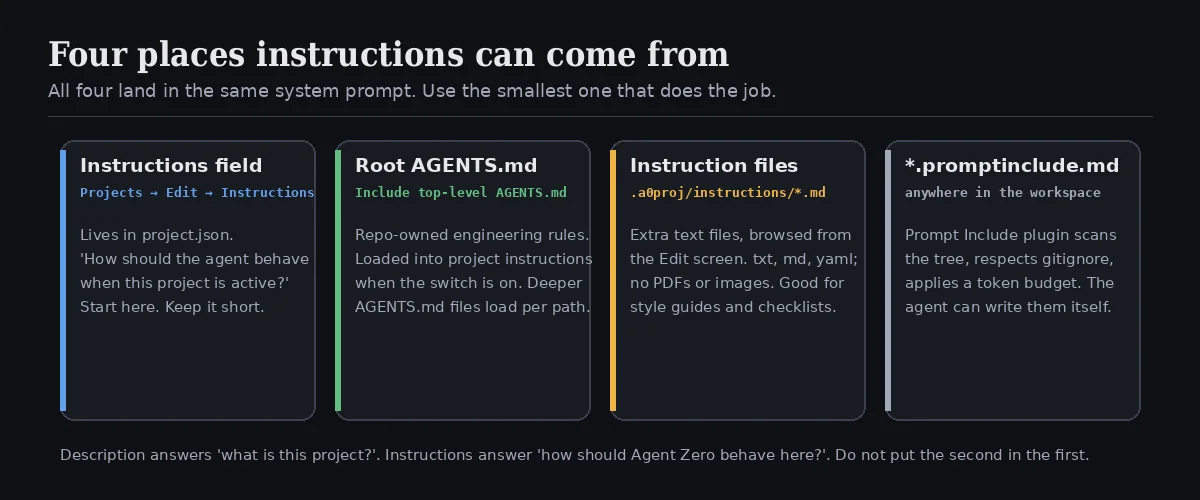
But the Instructions field is only the first of four places instructions can come from, and knowing the other three is what separates "I made a project" from "I use projects properly".
The Include top-level AGENTS.md switch
If your project is a code repository, it may already carry an AGENTS.md at the root: the engineering rules the humans agreed on. Flip Include top-level AGENTS.md on the Instructions tab and Agent Zero folds that file into the project instructions whenever it exists. No copying, no drift.
It goes further than the root. When the agent is about to edit a file deeper in the tree, Agent Zero walks the direct path from the project root to that file and loads every AGENTS.md it finds along the way (an AGENTS.override.md wins over its sibling). Sibling directories are ignored, so a rule for api/ never leaks into webui/. Your repository's own documentation becomes the agent's binding contract, one directory at a time.
Instruction files
Sometimes you want a style guide, a checklist or a client brief that is too long for a text box. Drop it into .a0proj/instructions/, or hit Browse on the Instructions tab to open that folder. Plain text formats only for now: txt, md, yaml. No PDFs, no images. The tab shows how many instruction files it currently sees.
*.promptinclude.md
The fourth layer is the sneaky one. The bundled Prompt Include plugin scans the whole workspace for files named *.promptinclude.md, respects your gitignore patterns, applies a token budget, and injects what it finds into the system prompt. Which means the agent itself can persist a rule when you ask it to: "from now on, always run the tests before committing" becomes a small Markdown file beside your code rather than a sentence you repeat every morning.
Use the smallest layer that does the job. Instructions field for behaviour, AGENTS.md for repository rules, instruction files for reference material, prompt includes for things that should evolve with the work.
Step 3: Activate it (and know what just happened)
Open or create a chat. In the top-right corner is the project picker. It says No project until you choose one. Click it, pick your project, and the project name appears in the top bar. That chat is now living in that world.
The same dropdown gives you Edit (jump straight to the project's edit screen), Deactivate, and Switch Project. From the A0 CLI the equivalent is /project, or /project <name> to switch directly, and /chats --project or --all-projects to list chats by workspace.
So what actually changed? More than most people realise.
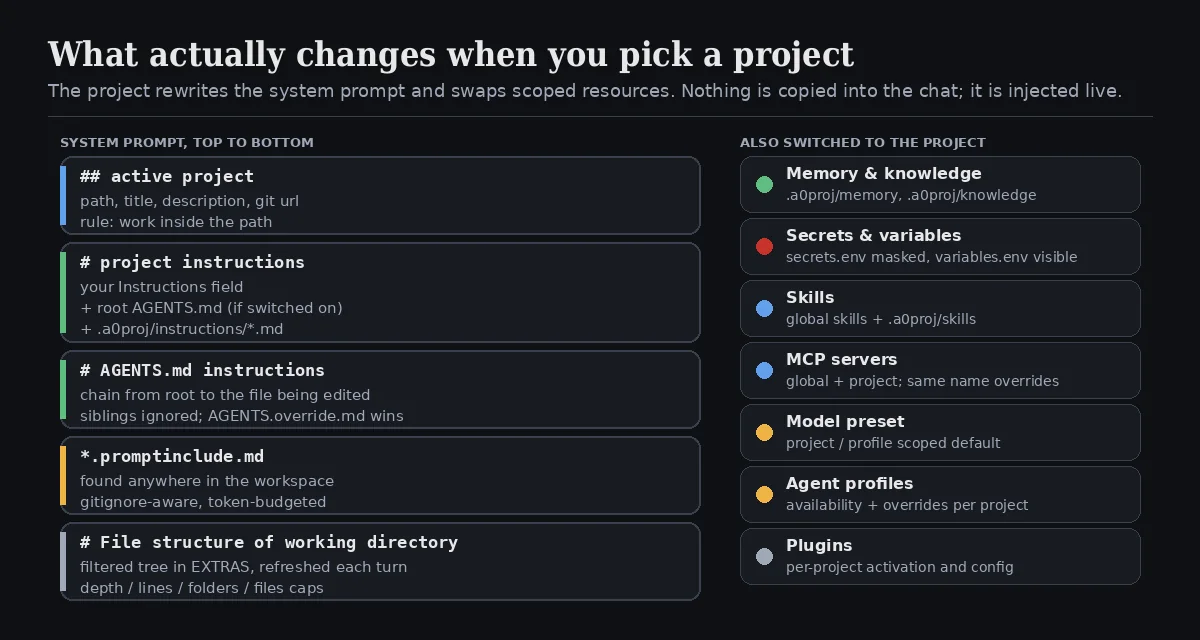
On the prompt side, the agent now receives, live and refreshed every turn:
- An active project block with the path, title, description and Git URL, plus the "work inside this path" rule.
- Your project instructions, including the root
AGENTS.mdif the switch is on and any instruction files. - The AGENTS.md chain for whatever it is currently editing.
- Any prompt include files found in the workspace.
- Optionally, a filtered file tree of the workspace (more on that below).
On the resources side, the following are all swapped to the project scope:
| Resource | Where it lives in the project | Behaviour |
|---|---|---|
| Memory | .a0proj/memory/ |
Separate vector store. Project facts stay in the project. |
| Knowledge | .a0proj/knowledge/ (main, fragments, solutions) |
Files you drop here are indexed for the project. |
| Variables | .a0proj/variables.env |
Non-sensitive, visible to the model. |
| Secrets | .a0proj/secrets.env |
Masked in chat and history. |
| Skills | .a0proj/skills/ |
Project-only skills on top of global ones. |
| MCP servers | .a0proj/mcp_servers.json |
Added to global servers; same name overrides. |
| Agent profiles | .a0proj/agents.json, .a0proj/agents/<profile>/ |
Availability and overrides per project. |
| Model preset | Model Configuration scope | A different default preset for this project. |
| Plugins | .a0proj/plugins/<plugin>/config.json |
Per-project activation and config. |
Nothing is copied into the chat. It is all injected at run time, which is why editing a project's instructions updates every chat attached to it and touches no other chat.
Step 4: Open the Advanced Settings
On the edit screen, Basic info is above the fold. Below it, Advanced Settings unfolds into the tabs that turn a labelled folder into a real workspace.
Secrets
Two text boxes in .env format, one item per line, # comments allowed (the agent reads those comments, so use them to describe what each value is for).
- Non-sensitive variables are visible to the model and appear in chat history unmasked.
REPORT_FORMAT=markdown,DEFAULT_REGION=eu-west, that sort of thing. - Sensitive variables are masked: the agent refers to them by name and the real value is injected only when a tool runs. Only values of at least four characters are masked, to avoid false positives on short strings.
In chat you say Use the project GITHUB_TOKEN to check the repository status and never paste the token itself. This very article was pushed with a GitHub App key that lives in the project's secrets and has never appeared in a message.
Keep your own copy of anything important. Backups may not include every secret.
Skills
Global skills are inherited by every project automatically. This tab adds the ones that only make sense here: Import Skills brings a skill into .a0proj/skills/, Open Folder takes you there. A release-notes skill that only matters in your docs project, or a deployment recipe that only matters in one repository, belongs here and nowhere else.
MCP Servers
Project MCP servers are inherited by every chat using the project. Global servers stay available unless a project server has the same name, in which case the project's definition wins. The configuration uses exactly the same JSON shape as the global settings (an object with mcpServers), so you can copy a working server from Settings into a project without translating anything.
File structure
This tab is easy to ignore and worth understanding.
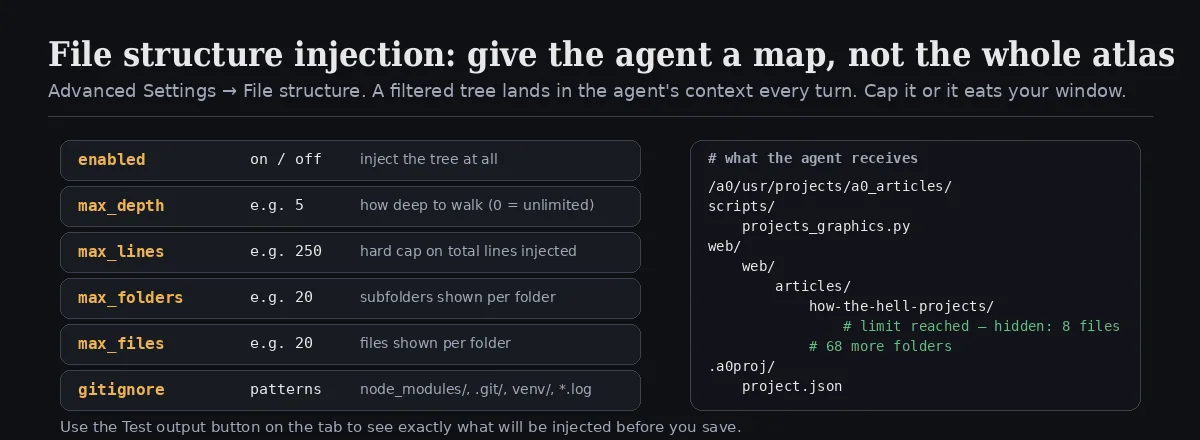
When Inject project structure into context window is on, Agent Zero places a filtered tree of the workspace into the agent's context every turn. The agent always knows roughly where things are without spending a tool call to ls. The price is context. So cap it:
| Knob | Effect |
|---|---|
| Max Depth | How deep to walk. 0 = unlimited. |
| Max Lines | Hard cap on total lines injected. The most important knob. |
| Max Folders / Max Files | Per-folder caps; the rest collapse into "# N more". |
| Ignored files / folders | gitignore patterns: node_modules/, .git/, venv/, *.log. |
Press Test output and you see exactly what the agent will receive before you save. For a real repository, depth 5, 250 lines, 20 folders and 20 files per folder is a sensible starting point.
Model preset
Projects can carry their own default model preset. Pick one from the Model preset dropdown, or hit Edit Presets to open the full Model Configuration plugin, whose scope selector lets you set a different default for a project, an agent profile, or the combination. The project stores only the choice; editing a preset updates every scope that uses it. In a chat, Use scoped preset returns you to whatever the project and profile decided.
Step 5: Profiles, scope, and who wins
This is where projects go from convenient to powerful. Agent Zero has a ladder of scopes, and projects sit in the middle of it.
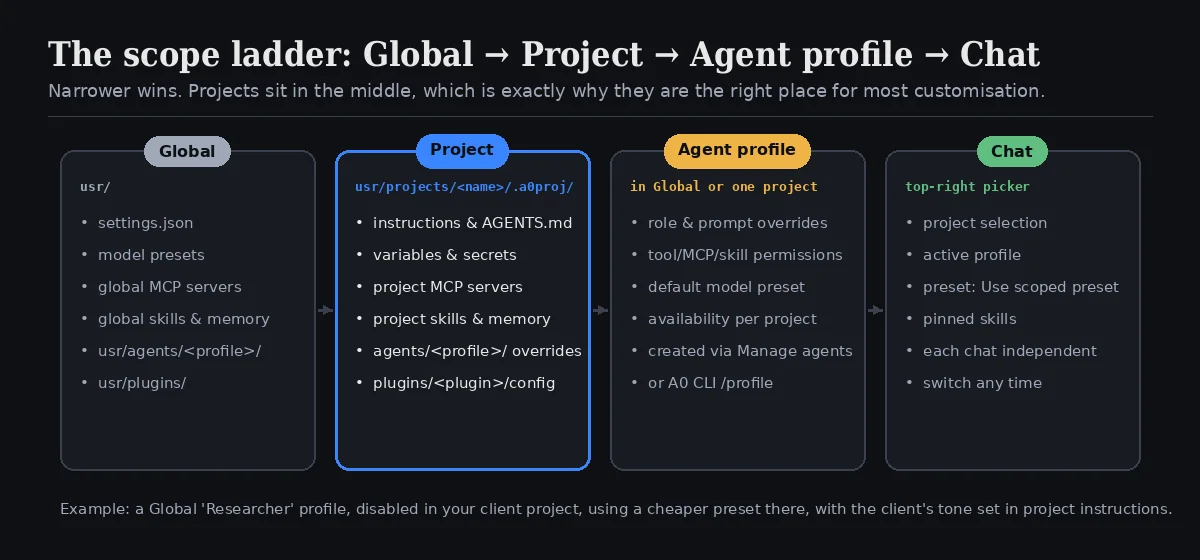
Global is usr/: your settings, presets, global MCP servers, skills, memory and profiles. Project is .a0proj/: everything above. Agent profile is a role (developer, researcher, hacker, or one you made) that can exist in Global or inside one project. Chat is the moment-to-moment selection: which project, which profile, which preset.
Narrower wins, which gives you moves like these:
- Hide a profile in one project. Open Manage agents, select the project, and turn the profile's availability toggle off. The Global profile is untouched; it simply is not offered, and cannot be delegated to, inside that project. If a chat was using it, Agent Zero reconciles the chat to an available profile rather than leaving it stranded.
- Override a profile only for a project. Profile overrides live sparsely in
.a0proj/agents/<profile-id>/. Only the files and keys you change are written. The Agent Editor validates them for you; the A0 CLI's/profileand/permissionswrite to whatever scope the current chat is in, so a project chat edits the project. - Cheap model here, strong model there. Same
researcherprofile, a lighter preset in your notes project and a heavier one in your incident-response project, with no copied configuration.
And a small kindness in the implementation: when you activate or deactivate a project, Agent Zero keeps your current profile if it is available in the new scope. Only when it is not does it fall back to the configured default.
The whole journey
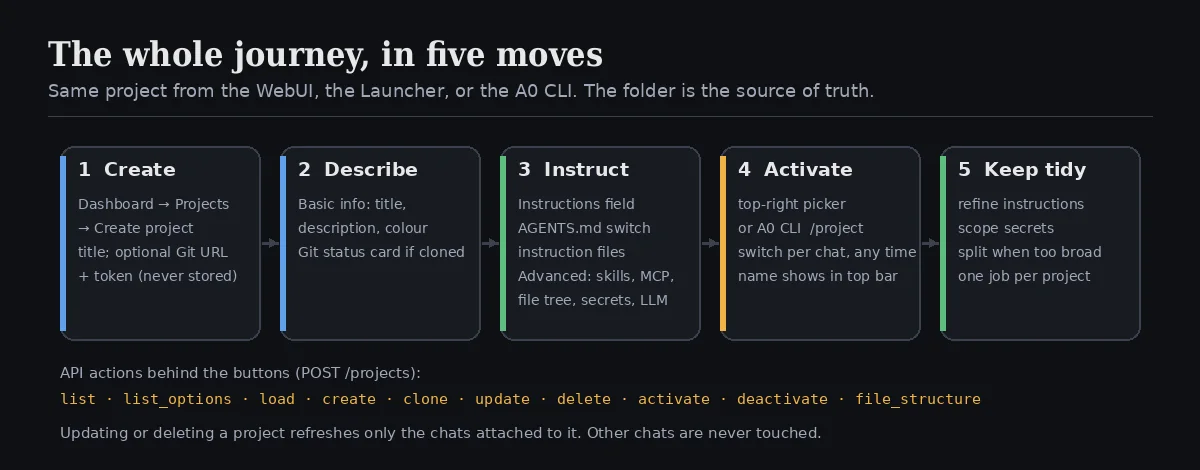
Behind every button is one endpoint, POST /projects, with a handful of actions: list, list_options, load, create, clone, update, delete, activate, deactivate and file_structure. If you ever want to script project creation, that is the surface, and the folder it writes is the same one the UI reads.
Updating or deleting a project refreshes only the chats attached to it and persists each of them once. Unrelated chats are never rewritten. Deleting a project deactivates it in those chats first, then removes the folder.
Getting the most out of it
One job per project. The most common failure is a project called "Work". Client A and client B are two projects. The repository and its documentation site are two projects if they have different rules. Splitting is cheap; untangling mixed memory is not.
Put project facts in project memory. If Agent Zero keeps applying one client's rule to another, open Memory, search for the phrase it keeps repeating, and check whether it was saved globally when it belonged to a project. Moving a memory from "global forever" to "this project only" is one of the simplest ways to keep the system sane.
Let the repository speak. For code projects, turn on the AGENTS.md switch and stop duplicating engineering rules in the Instructions field. Keep the field for behaviour the repo does not own: tone, what to ask before doing, where to put scratch files.
Scope credentials to where they are used. A token in project secrets is invisible to every other project. A token in global secrets is available everywhere, including the chat where you are pasting screenshots for a blog post.
Ask the agent to introspect. A great first message in a new project is:
Read the project instructions and tell me how you will work in this workspace.
If the answer surprises you, fix the instructions, not the agent.
Keep the tree small. File structure injection is a map, not the atlas. If your context feels crowded, lower Max Lines first.
Common problems
| Symptom | Check |
|---|---|
| Agent Zero ignores the project | Is the project name visible in the top-right picker for this chat? Each chat picks its own. |
| Instructions feel stale | Projects → edit icon → Instructions, update, Save. Attached chats refresh immediately. |
| Git clone failed | URL, token, network. For private repos create a fresh token; it is used once and discarded. |
| A secret is not used | It must be saved in this project and referred to by its exact name. |
| Profile vanished from the picker | Someone turned its availability off for this project in Manage agents. Global is unaffected. |
| The project has become too broad | Split it. Projects work best when each one has a clear job. |
Why this is worth the five minutes
| Without a project | With a project |
|---|---|
| Re-explain the context every chat | Context arrives before your first message |
| One global memory for everything | Project memory that cannot leak into other work |
| Credentials pasted into chat | Named secrets, masked, scoped to the workspace |
| Repository rules live in your head | AGENTS.md chain loaded per path, automatically |
| One profile, one preset, everywhere | Availability, overrides and presets per project |
| "Which folder was that in?" | A filtered file tree in context, capped to your budget |
Projects do not make the agent smarter. They make it situated. And a situated agent is the difference between a clever assistant and a colleague who knows what the job is.
Quick reference
Open:       Dashboard → Projects            (A0 CLI: /project, /project <name>)
Create:     Create project → title [+ Git URL + one-time token]
Activate:   top-right picker → project name appears in top bar (per chat)
Folder:     usr/projects/<name>/.a0proj/
            project.json · variables.env · secrets.env · mcp_servers.json
            agents.json · agents/<profile>/ · instructions/ · knowledge/
            memory/ · skills/ · plugins/<plugin>/config.json
Instruct:   Instructions field · Include top-level AGENTS.md · .a0proj/instructions/*.md · *.promptinclude.md
Advanced:   Secrets · Skills · MCP Servers · File structure · Model preset
Profiles:   Manage agents → pick project → availability toggle / overrides
API:        POST /projects  { action: list | load | create | clone | update | delete | activate | deactivate | file_structure }
That is Part 2. Next time in How the hell do I... with Agent Zero, another thing you have been meaning to figure out. If there is a corner of the WebUI, the Launcher or the A0 CLI you want covered, tell us on X at @agent0ai.