Your files have achieved independence. The project is on your laptop. The archive is on the NAS. The configuration lives on a server. The deliverables are in a bucket. And somehow you have become the integration layer: download, upload, rename, repeat.
There is a better job for you than being a human file-transfer protocol.
Welcome to Part 7 of How the hell do I... with Agent Zero. The connector and Launcher guide explained how to connect your computer to Agent Zero. This companion goes deeper into Files: one interface for the instance filesystem, a connected host folder, and supported network storage.
The payoff is practical. Browse the right location without mounting every service into Docker. Open supported remote text in the shared Editor. Download or upload through the same Files surface. Grant editing without casually granting deletion. And understand when a refused save is protecting your work rather than ruining your afternoon.
Research basis: source review on October 1, 2026, using Agent Zero Core commit
e3051fb, connector 2.13 at76e834f, and the five screenshot-matched File Browser plugins by 3clyp50, each indexed as 0.1.1 with advertised minimum Agent Zero v2.12. The immutable plugin sources are linked below. These are source-backed instructions, not claims of successful connections to live NAS, SSH, DAV, FTPS or S3 services. Your actual server configuration still needs testing.
First: which computer owns this folder?
Before entering a single password, identify the layer.
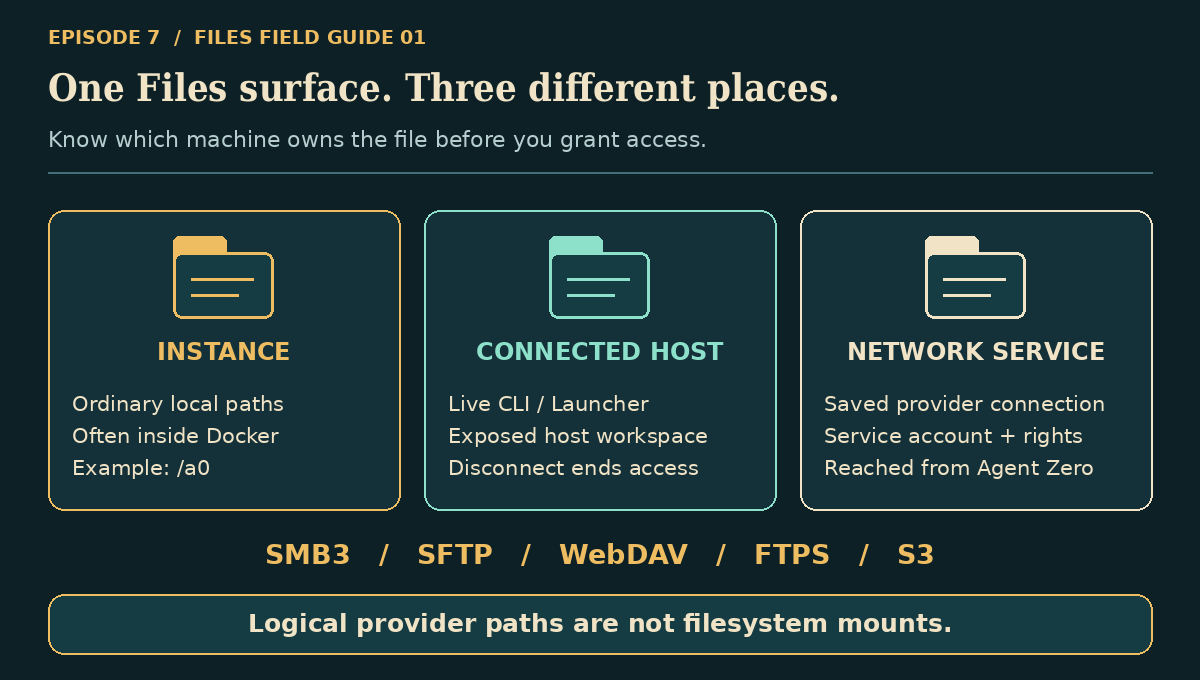
| What Files shows | Where the files actually live | What makes them available |
|---|---|---|
An ordinary path such as /a0 |
The Agent Zero instance filesystem, often inside Docker | The running instance and its filesystem permissions |
| A0 CLI — … or A0 Launcher — … | The computer running the connected CLI or Launcher | A live connector exposing that workspace |
| A named SMB, SSH, WebDAV, FTPS or S3 connection | The configured network service | An enabled provider plugin, a saved connection and service credentials |
“Remote” is relative to Agent Zero, not necessarily to your laptop. A NAS reachable from your laptop may be unreachable from a cloud-hosted Agent Zero instance. The five network providers connect from the Agent Zero runtime; they do not magically borrow your laptop's VPN.
These folders use an application-level namespace such as /@connections/ssh/<connection-id>/…. It is not a kernel mount, a Docker volume or a path you can blindly pass to cd. Connecting a provider also does not turn every shell or file tool into a network-aware tool. Files and the shared remote Editor understand the provider namespace. For other workflows, explicitly transfer the file to the relevant workspace.
One more distinction: /a0 is the local Files starting location, not a security sandbox. The local browser can address the instance filesystem according to its process permissions. Core provider and path contract.
Choose the connection you actually have
The plugins in the episode screenshot are separate adapters, not five names for the same feature.
| Your storage | Install this plugin | Protocol detail that matters |
|---|---|---|
| A NAS or Windows file share | File Browser SMB 3 for NAS | Encrypted SMB3 with signing; a server and a single share |
| A server with SSH file access | File Browser SSH access | SFTP over SSH, with a pinned server fingerprint |
| A DAV-enabled cloud or document service | File Browser WebDAV access | Verified HTTPS to the final DAV folder URL |
| An FTP service secured with explicit TLS | File Browser FTPS access | Explicit FTPS, protected data channel, passive transfers |
| AWS S3 or compatible object storage | File Browser S3 access | Bucket/prefix access with explicit credentials and conditional writes |
You do not need to install the A0 CLI on the NAS, SSH server or bucket. The network plugins supply their own transports. Conversely, exposing your laptop's workspace through the connector does not require one of these five plugins.
The common setup: install, configure, save, test, open

- Open Plugin Hub, search for the exact plugin title above, inspect its source and install it.
- Enable it globally. These providers do not use separate per-agent or per-project connection configurations.
- Open the plugin's settings and select Open connection settings. Alternatively, open Files → Settings, find Remote folders, and choose Add connection.
- Pick the provider, enter a recognizable Connection name, and fill in its fields using the sections below.
- Start with Browse folders and Download files only. The new-connection UI selects those by default and leaves mutations off.
- Select Save connection, then Test connection. Testing uses the saved connection and tries to list its root; unsaved edits are not what it tests.
- Select Open folder or its folder icon. Confirm that the breadcrumb and contents identify the intended server and root before doing anything else.
If a provider is installed but unavailable, check whether it is enabled. If it is not installed, the connection picker can direct you to its Plugin Hub detail. If the expected connection controls are absent, update Core and the provider rather than improvising an unrelated mount command.
A successful test means listing worked. It does not prove upload, editing, deletion or every server extension will work. Test the operations you plan to use in a disposable folder first. Shared UI controls.
Route 1: your laptop through the connector
If you completed Part 6, this is the shortest route.
- Connect the host CLI or Launcher to the intended Agent Zero instance.
- Choose the workspace on the host side. In Launcher, configure that instance's Host access, select the folder, enable Files read, and leave Files write and Code execution off for a read-only start. Keep the instance open in its Launcher tab or detached window.
- With the interactive CLI, use its file-access control; the documented shortcuts are F3 for file read/write and F4 separately for code execution. Inspect the displayed state rather than assuming both are enabled.
- In Files → Settings → Remote folders, find the automatically published A0 CLI — … or A0 Launcher — … entry.
- Use Test connection, then Open folder.
These entries are managed connections. Files does not give you ordinary edit/remove controls for their root and credentials; change access in the connector or Launcher. Disconnecting, reconnecting or changing the root can invalidate the old logical path, so reopen the current entry instead of bookmarking its generated ID.
If the row says Update and restart the Connector to browse this folder, do exactly that. The server needs a client advertising the file-browser capability, not merely an old CLI that can chat.
For host file browsing, the connector applies workspace containment and write checks. Those checks are not a sandbox for separately enabled host terminal commands. Also, source review found a Windows-only path-helper mismatch in connector 2.13; Windows host Files interoperability was not established by this research. Test the actual version you install before relying on it for important edits. Host-folder provider.
Route 2: SMB3 for your NAS
Select SMB 3 for NAS and enter the fields separately:
| Field | What to enter |
|---|---|
| Server name | The NAS/server hostname or supported address, not a complete UNC path |
| Share name | One share, such as projects, not \\server\projects |
| Folder within share | Optional subfolder, such as team/reports; blank exposes the configured share root |
| Username | A registered account; DOMAIN\user if your server requires it |
| Password | That account's password |
| Port | Normally 445 |
Example shape: server nas.example.net, share projects, folder demo. These are illustrative values; substitute your own service and a deliberately restricted account.
Save, test, open. If it fails, verify that Agent Zero's runtime can reach the NAS, that the account has share and filesystem permissions, and that the server supports SMB3 encryption. The adapter requests both encryption and signing and rejects older dialects. Turning on SMB1 or guest access is not the fix.
Use a direct share rather than assuming DFS namespace support. Symlinks/reparse points are rejected by the adapter. SMB “signed sessions” means SMB transport signing—not a universal signature on every Editor session or saved connection file. SMB setup and limitations.
Route 3: SSH access means SFTP—not a terminal
Select SFTP over SSH. Enter the server, SSH port (normally 22), an absolute remote folder, username, and optional password.
Before saving:
- Click Check server identity.
- Compare the returned SHA256 fingerprint with one obtained independently from the server administrator or a trusted management channel.
- Only after it matches, select I trust this server fingerprint.
The probe tells you what the contacted server presented. It does not independently prove that this is your server. Accepting it without comparison defeats the reason for pinning it. Changing the host or port resets the trust decision.
For key login, choose Create instance SSH key, then Show public key or Copy public key. Have the administrator install only the public key in the remote account's ~/.ssh/authorized_keys. Keep the private key on the Agent Zero instance. This plugin uses its instance key and/or supplied password; it does not automatically consume your laptop's SSH agent or arbitrary local private-key files.
Save, test, open. Browse and download first. For editing, the server needs the OpenSSH POSIX rename extension used by the safe-save path. A server can support SFTP listing yet fail this particular replacement operation. The adapter does not solve that by deleting the original first.
This plugin grants file access over SFTP, not SSH shell execution. Use server-side account restrictions to enforce the real directory boundary. SSH setup, trust and key workflow.
Route 4: WebDAV over HTTPS
Select WebDAV over HTTPS. Supply:
| Field | What to enter |
|---|---|
| WebDAV folder URL | The final HTTPS DAV collection URL, not the service's ordinary website homepage |
| Username | The registered DAV account |
| Password or app password | The credential that service expects for DAV |
| Trusted CA file | Optional trusted CA file path inside Agent Zero, not on your laptop |
For a Nextcloud-style service, the URL may resemble https://cloud.example.com/remote.php/dav/files/user/. Use the address your service actually documents.
TLS certificate verification is enabled. Redirects are rejected: configure the final HTTPS address rather than expecting credentials to follow a redirect chain. A private CA belongs in the trusted CA configuration; disabling verification is not an exposed setup option.
Remote editing requires a strong ETag for replacement and a server that honors conditional writes. Listing can work while editing fails because the server omits ETags or returns weak ones. That is a meaningful protection, not an invitation to force an overwrite. WebDAV setup and save contract.
Route 5: FTPS, with the letters in the right order
SFTP is SSH. FTPS is FTP protected by TLS. They are not interchangeable because they both happen to move files.
Select FTPS (explicit TLS). Enter a server name, port (normally 21), absolute remote folder, registered username and password. Optionally provide a trusted CA file inside the Agent Zero runtime.
The server must support explicit TLS, a protected data channel, passive transfers, and MLSD directory listings. This plugin does not support plain FTP, anonymous login or implicit port-990 FTPS. Changing the port number to 990 does not change the implementation into an implicit-TLS client.
If authentication succeeds but listing or transfer hangs, check the server's passive-port configuration and firewall from the Agent Zero runtime's network. If listings fail, confirm MLSD support. Use a jailed account: a folder setting in a client is not a substitute for server-side confinement.
FTPS saves upload a temporary sibling, check the current content hash and rename the new file into place. Standard FTP rename is not an atomic conditional-write protocol; another writer can still race the final check. Avoid simultaneous edits to important files and retain backups. FTPS requirements and concurrency limits.
Route 6: S3 and compatible storage
Select S3 object storage and enter:
| Field | What to enter |
|---|---|
| Bucket | The bucket name, not an ARN or s3:// URL |
| Key prefix | Optional scope such as team/demo; blank starts at the bucket root |
| Region | Your service's region; shipped default is us-east-1 |
| HTTPS endpoint | Blank for AWS endpoint selection; the verified HTTPS endpoint for a compatible service |
| Access key ID / Secret access key | Explicit credentials restricted to the intended bucket/prefix |
| Session token | Include it when using temporary credentials |
This revision requires explicit keys. It does not expose an instance-role-only setup or automatically renew expired temporary credentials. Rotate/update the saved values when necessary.
On AWS, a typical read workflow needs s3:ListBucket on the bucket and s3:GetObject on the allowed objects. Upload/edit generally needs s3:PutObject; deletion needs s3:DeleteObject. These are operational starting points derived from the adapter's operations, not a universal tested IAM policy. Bucket policies, explicit denies, KMS and retention rules can add constraints. Enforce the prefix in IAM as well as in the UI.
S3 folders are prefixes or marker objects, not normal filesystem directories. Rename/move is unavailable because this adapter does not pretend that copy-and-delete is an atomic rename. Conditional saves require an endpoint supporting the relevant IfMatch/IfNoneMatch writes. Deleting a versioned object does not purge its historical versions. S3 setup and limits.
Permissions: six choices, not one giant yes
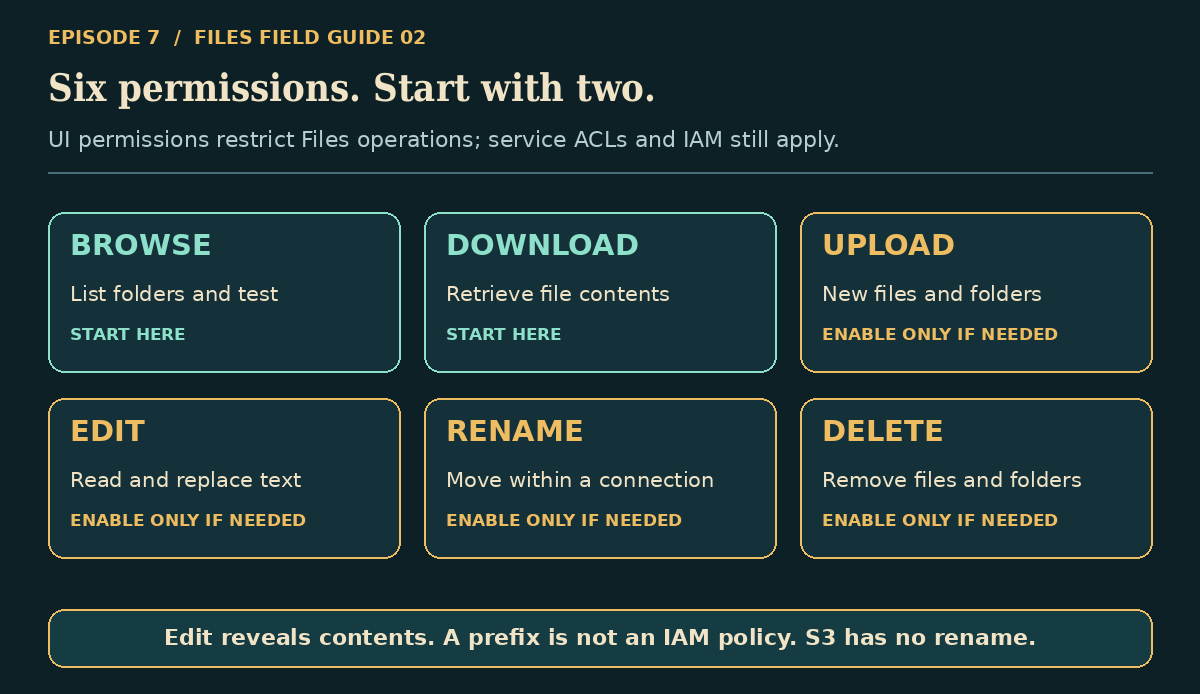
| Permission | What it authorizes |
|---|---|
| Browse folders | Directory listing and Test connection |
| Download files | Download/read delivery through Files |
| Upload files and create folders | New file uploads and folder creation |
| Open and edit files | Remote Editor access and revision-based replacement |
| Rename and move files | Supported moves within the same connection |
| Delete files and folders | Deletion; treat folder removal as potentially destructive |
Editing necessarily exposes file contents. Disabling Download does not turn an account with Edit into a “cannot read” account. And these are Files-operation permissions, not a global restriction on a user or agent that already has shell access, other credentials or broader host rights.
For a review-only connection, keep Browse and Download. For text maintenance, add Edit only when needed. For publishing, add Upload. Reserve Rename and Delete for explicit tasks. The UI disables unsupported actions; S3's missing rename is intentional.
The remote account's own ACLs/IAM remain authoritative. A checkbox can restrict what this interface attempts; it cannot grant an operation the server refuses. Core permission enforcement.
Editing without casually overwriting someone else's work
Open a supported remote text/code file in the shared Editor, make a small change, and save. This is bounded UTF-8 text editing—not a promise that remote DOCX, spreadsheets or PDFs open directly in Office. Download those for the appropriate local workflow, then upload the resulting file when permitted.
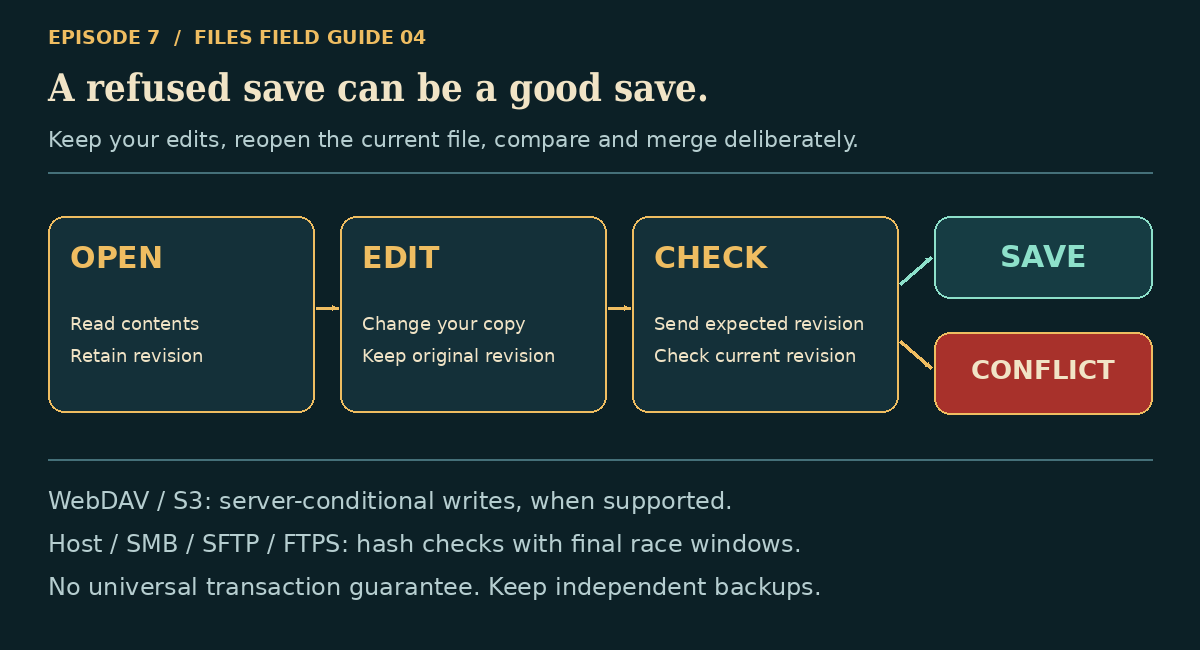
When a remote file opens, Core retains its provider revision and passes that expected revision back on save. What happens next depends on the provider:
| Backend | Save protection | Limit to remember |
|---|---|---|
| WebDAV | Strong ETag and HTTP conditional PUT | Server must supply and honor the condition |
| S3 | ETag-based conditional object write | Compatible service must implement conditional writes |
| Host, SMB, SFTP, FTPS | Hash/revision checks with staged replacement | A final check-to-replace race is still possible |
If a save reports a conflict, preserve your edited text, reopen the current remote file, compare the changes and merge deliberately. Do not retry blind overwrites until the error disappears. Save conflicts exist because someone else's work is worth keeping too.
The shipped defaults are 10 MiB for text editing, 100 MiB for transfers, 100 MiB expanded archive content and 1,000 archive entries. These are configurable instance limits, not promises that every server accepts files that large. Increasing them consumes runtime memory/disk and does not remove protocol limitations.
For transfers between different connections, use download, then upload. Do not assume cross-provider drag-and-drop, cross-connection rename or a remote-to-local Save As operation exists. Directory/multiple-file downloads may be packaged as ZIPs, subject to limits. Shared Editor and transfer implementation.
A five-minute acceptance test before real work
Create a disposable test folder using the service's own trusted administration interface. Then:
- Connect with Browse/Download only. List the folder and download a known text file. Confirm mutation actions are unavailable.
- Enable Upload for this test connection. Create a small, uniquely named text file; confirm its contents through a second trusted client.
- Enable Edit. Open that file, change one line, save, reopen and compare.
- Try a deliberate stale-save test: keep it open in Agent Zero, change the remote copy from another client, then attempt to save the old Editor version. Expect a conflict—not silent loss of the other change. This checks one conflict scenario, not every possible race.
- Test Rename only on providers that support it, and Delete only on a disposable item. Confirm server restrictions still win.
- Restore the smallest permission set you need. Disable the provider and confirm its connection becomes unavailable; re-enable only when wanted.
Now you know more than “the green test button worked.” You know whether the operations you will actually use behave correctly against your actual service.
Where the secrets live
Saved provider connections live in the Agent Zero instance's plugin data directories, typically /a0/usr/plugins/<plugin-name>/data/connections.json. The shared helper writes credential-bearing JSON with restrictive file permissions and redacts secret fields from public connection responses. That is not encryption at rest. Protect the instance storage and backups accordingly.
A saved-secret field shows Saved; leave unchanged to keep it. Preserve that state when editing unrelated settings instead of inserting a dummy password. SSH instance keys also belong to instance storage; only the public key should leave for installation on the remote account.
Removing a saved connection removes its configuration, not the remote data or the service account. Disabling a provider prevents Files from using it; it does not revoke the underlying password/key at the service. Revoke or rotate credentials there when access should truly end. Managed host entries are different: disconnect them from the CLI/Launcher.
Troubleshooting without guessing
| Symptom | Check first |
|---|---|
| No provider in Add connection | Correct plugin installed, globally enabled, compatible Core |
| Your laptop connects but Agent Zero cannot | DNS, routes, VPN and firewall from the Agent Zero runtime |
| Test succeeds, upload fails | Upload permission and service-side write rights |
| SSH refuses the connection after a server change | Verify the new fingerprint independently; do not blindly accept it |
| SFTP reads work but saves fail | POSIX rename extension, permissions, concurrent edits |
| WebDAV rejects the address | Final HTTPS DAV folder URL; no redirect or embedded credentials |
| WebDAV opens but refuses replacement | Strong ETag support and conditional-write behavior |
| FTPS login works but data operations fail | Passive ports, protected data channel and MLSD support |
| S3 listing works but reading fails | Object permissions, bucket policy, encryption requirements and token expiry |
| Rename missing on S3 | Expected: the adapter does not implement it |
| Host folder disappears | Live connector, exposed root, selected instance, current permissions |
| Text file cannot open in Editor | UTF-8, nonbinary content, supported file type and configured size limit |
The point is less copying—and better boundaries
You do not need to mount the entire universe into Docker. You need the right connection, the right account and the smallest permission set that gets the job done.
Start with one remote folder. Browse it. Download one known file. Make one disposable edit. Prove the round trip before handing it anything important.
Then retire from your unpaid position as human file-transfer protocol.
Continue the series: Get the most out of Agent Zero with the connector and Launcher. For organizing the work itself, revisit Projects and Plugin Nester.