Your agent reasons, plans and writes code. But in a typical Docker setup without host mounts or a connector, the files and applications on your laptop are a world away.
So you do what everyone does. You copy a file into the chat. You paste the error back out. You take a screenshot of the thing on your second monitor, upload it, describe it anyway because the resolution is bad, and then manually apply the fix the agent suggested — in the editor it cannot reach, on the machine it cannot see.
That is not an agent. That is a very articulate pen pal.
Welcome to Episode 6 of How the hell do I... with Agent Zero. Part 1 organized the plugin drawer. Part 2 established projects. Part 3 separated self-improvement from context management. Part 4 put several workers on one job. Part 5 chose a memory plugin. This time we close the last gap: getting the agent out of the browser tab and onto your actual computer.
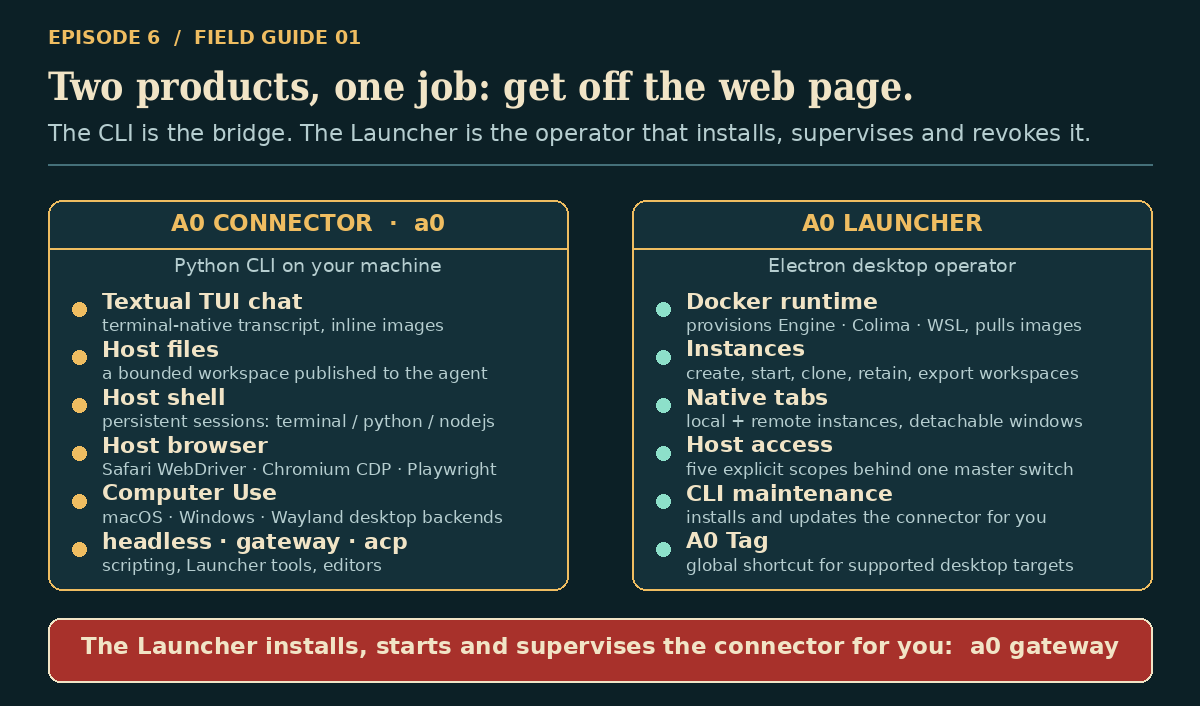
Two pieces do that work. a0-connector is the bridge. a0-launcher is the operator that installs, supervises and revokes it.
Research basis: connector 2.13 at
76e834f, Launcher package 1.8 atb0333d8(eight commits past thev1.8tag), and Core ate3051fb, reviewed October 1, 2026. Targeted Launcher checks yielded 142 passes and 3 Windows-specific skips; two other test files were blocked by missing dependencies. This was not a full-suite or live cross-platform test. Permission dialogs, real host browsers and desktop backends were not exercised. Launcher source-tip behavior should not automatically be attributed to the published v1.8 binary.
The honest version of the pitch
Let us kill one claim before it spreads: "the WebUI cannot do this" is not quite the right framing.
The connector is a process running on your machine that advertises host capabilities to an Agent Zero server. Once that bridge exists and is authorized, the capability belongs to the server and the chat context — not to whichever window you happened to type in. The real contrast is Agent Zero alone versus Agent Zero plus a locally running, explicitly authorized connector.
With that said, the practical difference is enormous. Here is what the bridge actually moves.
Where the work actually happens
This is the mental model that makes everything else make sense.

Agent orchestration remains on the server. Host operations travel over Socket.IO to the connector and execute under the granted scopes and host-account privileges. Results, file contents and screenshots can travel back; configured model providers may also receive task content. This is an execution-location distinction, not a promise that data never leaves the server. Connector session implementation.
Three consequences follow, and all three matter:
- The connection is outbound. Your machine opens the HTTP and Socket.IO connection to the server. The server does not need to reach into your network or open an inbound shell service on your host.
- Browser profiles remain local. The connector does not export your browser profile into Docker. That does not make all activity private: page content can enter the agent workflow, and server-login credentials/session cookies have their own transport and storage.
- The workspace is a starting directory, not a sandbox. We will come back to this, because it is the single most important thing in this article.
Installing the connector
One line, two platforms:
# macOS / Linux
curl -LsSf https://raw.githubusercontent.com/agent0ai/a0-connector/main/install.sh | sh
# Windows PowerShell
irm https://raw.githubusercontent.com/agent0ai/a0-connector/main/install.ps1 | iex
The installer resolves the latest published GitHub release at runtime and installs into a managed CPython 3.12 uv tool environment, pinned to the dependency locks committed with that release. Update in place later with a0 update, which needs uv on your PATH.
Then just run it:
a0
The CLI opens a host picker first. It checks Docker for local Agent Zero containers and lists what it finds as friendly URLs such as http://localhost:50001. If Docker finds exactly one local endpoint and no conflicting saved host, it enters that instance automatically — connecting straight away if the instance is open, or advancing to the login stage if it is protected. Protected instances use the same web login as Agent Zero itself: the CLI posts to /login and keeps the session cookie for the process.
| Situation | Flag |
|---|---|
| Keep the picker open despite a single local instance | a0 --no-auto-connect |
| Skip Docker inspection entirely (remote hosts, Cloudflare tunnels, machines without Docker) | a0 --no-docker-discovery |
| Prefill a host for one launch | a0 --host http://localhost:5080 |
| Prefill a host for this shell and its child processes | export AGENT_ZERO_HOST=http://localhost:50001 |
These ports are examples; use the actual instance URL. Persist a host through the CLI's remember-host option. The installer commands execute downloaded scripts—review them first if that is your usual installation policy. Compatible Core already contains the builtin connector plugin; no separate community plugin install is needed.
One Linux footnote: clipboard image paste works natively on macOS and Windows, but Linux needs wl-clipboard on Wayland or xclip on X11.
Security note worth your attention: in connector 2.13, TLS certificate verification is disabled in the client (
_VERIFY_TLS_CERTIFICATES = False, withssl_verify=Falseon the Engine.IO path). Do not treat a remote HTTPS connection as having a verified server identity. Use a trusted network or an independently authenticated tunnel, and protect the session cookie file at~/.agent-zero/session_cookies.json.
Four front doors, not one
The thing people miss about the connector is that the terminal UI is only one of its interfaces — and the other three are where the serious automation lives.
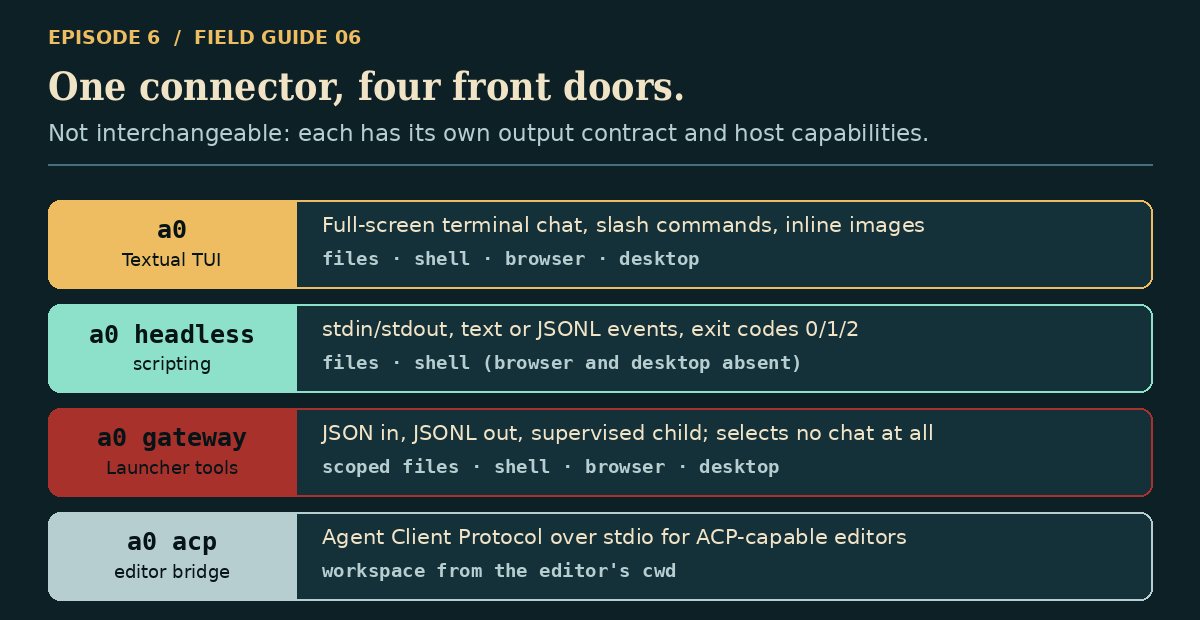
a0 — the Textual TUI
Full-screen terminal chat with a real transcript. Footer shortcuts: F6 chats, F7 nudge, F8 pause/resume, Ctrl+P command palette. Type $ in the composer to browse skills available to the chat; $skill-name your prompt activates the skill and sends the prompt in one move.
It renders images inline, too. Browser screenshots, attachments and assistant images appear under their owning transcript entry, up to 96×32 terminal cells, collapsible to a thumbnail with click, Enter or Space. Set A0_CLI_IMAGE_MODE to auto (default), tgp, sixel, halfcell or off. On auto it probes terminal capability — so Kitty or a direct iTerm session can show real rasters, while Apple Terminal and Warp quietly keep the text transcript instead.
And it is not a read-only viewer of Agent Zero's settings. /profile opens the profile menu with Create profile and Edit current profile. /permissions edits Tools, MCPs and Skills for the current profile — tab across, cycle each item through Default → On → Off with Space or Enter, Ctrl+S to save. Both commands follow the current chat's scope: a project chat edits that project, a chat with no project edits Global.
a0 headless — scripting
This is the scripting interface. Use a deliberately chosen, trusted workspace and account for its access defaults.
# One-shot prompt in a fresh chat, JSONL event stream on stdout
a0 headless --host http://localhost:5080 --new-chat \
  --workspace . --output jsonl -p 'Summarize this workspace.'
# Entire stdin becomes one prompt
printf 'What is 2+2?\nExplain briefly.\n' |
  a0 headless --host http://localhost:5080 --print --output jsonl
JSONL emits one compact JSON object per line with a type of stage, ready, event, message_queue, complete, notice, error or tag_result. Exit codes are 0 success, 1 runtime or command errors, 2 connection, capability, auth or discovery errors. Read both — and keep stderr separate, because credential prompts and terminal notification bytes go there deliberately so they never contaminate stdout.
Two gotchas that will bite you if you skip them. First, ordinary headless is not read-only: the runner explicitly sets remote_file_write_enabled=True and remote_exec_enabled=True, overriding the config default. Second, a test specifically expects two assistant_message records before complete — a short text, then a corrected final snapshot. Do not blindly concatenate every assistant message as an independent fragment.
a0 gateway — Launcher-managed host tools
JSON objects in on stdin, JSONL records out. Critically, it selects no chat at all: the tools-only branch registers host tools, publishes the workspace tree and returns before chat resolution ever happens. This is the process the Launcher spawns on your behalf, and it is where the scope flags live.
a0 acp — editor bridge
An Agent Client Protocol stdio adapter. Chat selection is deferred until ACP session operations, and the workspace comes from the client's cwd. If your editor speaks ACP, this is the door.
Host access: five scopes and one warning
This section is the price of admission. Read it before you enable anything.
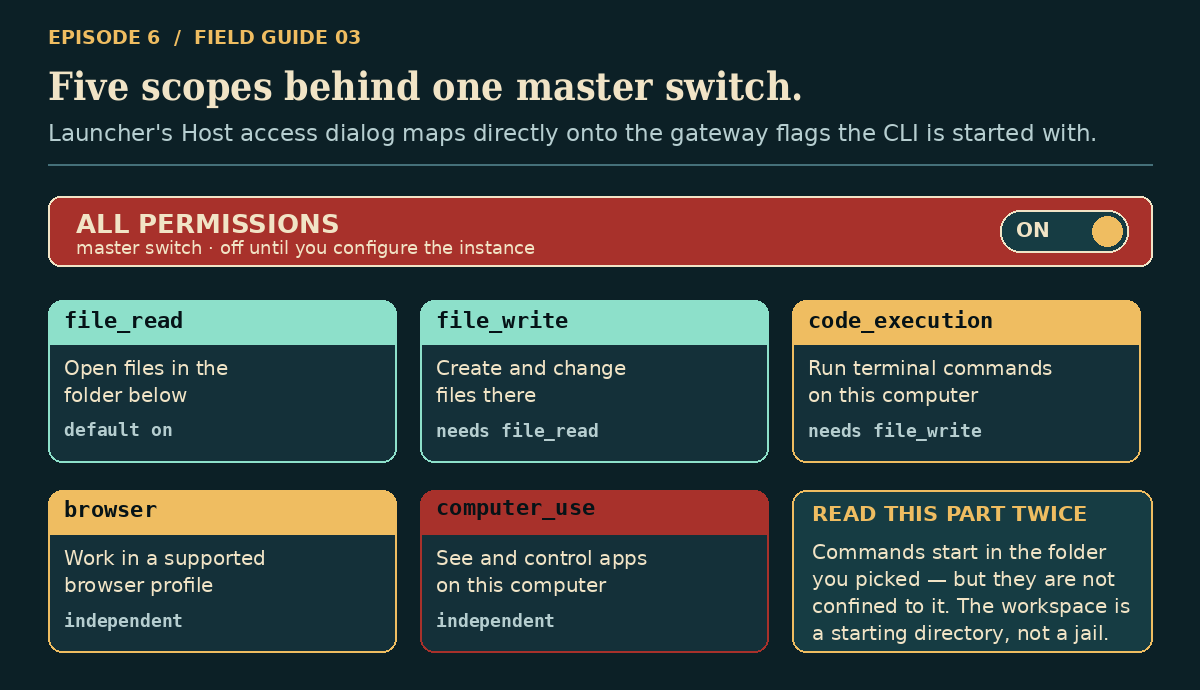
The Launcher's Host access dialog maps one-to-one onto the gateway flags:
| UI choice | Gateway scope | Depends on |
|---|---|---|
| Files read | file_read |
— |
| Files write | file_write |
Files read |
| Code execution | code_execution |
Files write (so read too) |
| Use my Browser | browser |
independently selectable |
| Computer Use | computer_use |
independently selectable |
Defaults are read, write and code execution true, Browser and Computer Use false — all sitting behind a master switch that is initially unconfigured and off. That is worth saying plainly: flipping Host access on with defaults enables file read, file write and terminal command execution. It is not a read-only default.
And now the warning the UI itself gives you, verbatim in spirit: "Commands start here but can reach other folders on this computer."
The folder becomes --workspace and the child process's starting directory. The file interface implements root-containment checks; binary Files operations add symlink/no-follow protections. These are source-observed protections, not proof of identical behavior on every OS. Shell execution is not workspace-sandboxed. A starting directory is not a jail. Grant code_execution only when that broader host authority is appropriate.
First useful task: one host folder
Start a0 from the intended project directory and connect to the correct instance/chat. Inspect F3, which switches file access between Read&Write and Read-only; writing starts enabled in this TUI revision, so deliberately select Read-only. F4 separately controls remote execution. Ask: “Read the exposed host workspace, summarize the project, and make no changes.” Confirm the agent identifies the host root, not the Docker workdir. Enable writing only for a subsequent bounded edit, then inspect the real host diff. CLI controls.
The lease model is the compensating control. Launcher spawns the gateway against an open instance tab; closing that tab, destroying the web contents or quitting the app stops the gateway. Disconnect suppresses the lease; Reconnect releases the suppression. Reload and detach preserve it. That bounds the window of access — it does not reverse changes already made.
Host browser: three routes, pick one first
Agent Zero's browser tool can route through the connector to an installed host browser. An authorized Chromium connection can use its existing signed-in session. Safari automation and a separate A0-managed profile are different: do not assume they inherit every personal tab or login.
There are three routes and they are genuinely different products. Choose the route first; the setup, the consent prompt and the limitations all follow from it.
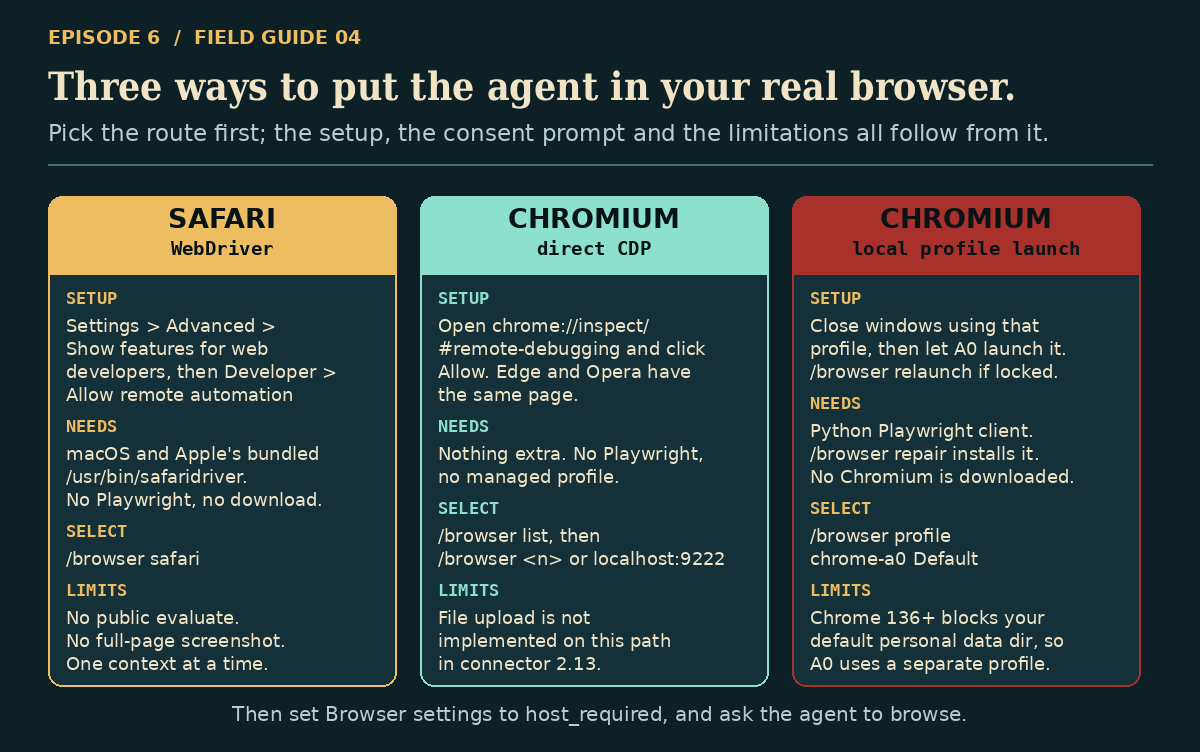
Route A — Safari, via WebDriver
Open Safari → Settings → Advanced, enable Show features for web developers, then open Developer and enable Allow remote automation. The connector never enables this silently.
Then /browser safari. A0 starts Apple's bundled /usr/bin/safaridriver on a free loopback port and opens a Safari automation window — it does not attach to all your existing personal tabs.
Know the limits: public evaluate is rejected before the browser even starts, because this backend cannot forcibly interrupt JavaScript. Full-page screenshots fail explicitly — viewport only, no stitched fallback. And only one Agent Zero browser context at a time.
Route B — Chromium family, direct CDP
Open the browser you already use, visit its remote debugging page (chrome://inspect/#remote-debugging, edge://inspect/#remote-debugging, opera://inspect/#remote-debugging) and click Allow.
Then /browser list to see detected targets, and /browser <number> or /browser <id> to pick one. If the browser was launched with an explicit debugging port, address it directly: /browser localhost:9222. That port is an example, not a requirement — the connector reads DevToolsActivePort from the user data directory and builds the WebSocket URL itself.
This route needs no Playwright client or managed profile. The confirmed gap in 2.13 is file upload, which is not implemented on direct CDP. Use a compatible local-profile launch route when uploads are required. Keep debugging endpoints local or tightly access-controlled: they grant powerful browser access.
Route C — Chromium family, local-profile launch
Here A0 launches the browser itself with Playwright's Python client against your installed Chromium binary. Run /browser profile to list detected profiles, then select one, for example /browser profile chrome-a0 Default.
Chrome 136+ restricts remote-debugging launch against the default personal data directory, so A0 offers a separate managed profile such as chrome-a0; you may need to sign in there. Match Core's host_browser_profile_mode to the route: agent for a dedicated A0 profile, existing for an existing host profile. A local chrome-a0 selection does not override a server request insisting on existing; Launcher gateway operations in this revision force existing mode. If the profile is locked, close its ordinary windows and retry or use /browser relaunch. The connector does not silently seize it.
If Playwright's Python client is missing, /browser repair installs it into the CLI's own interpreter. It does not download a Chromium binary, and it is not the same thing as playwright install chromium.
Finishing the setup
Enable host access locally with /browser host on, then inspect /browser status. In Core Browser settings choose Host browser on connected computer, whose runtime_backend value is host_required; the alternative is container. Older documentation mentions host_when_available, but inspected Core normalizes it to host_required—do not expect silent Docker fallback. Match the profile mode above, keep the connector connected, and ask for harmless navigation and a page-title check. A remote request cannot override an explicitly disabled local browser manager. Current Core settings.
/browser status        show connector state and current server mode
/browser host on|off   enable locally and sync the server mode
/browser profile       list detected browsers and profiles
/browser list          list host targets
/browser relaunch      prepare the selected browser now
/browser repair        install the missing Playwright client
/browser privacy       show where content policy is configured
One practical note on evaluate: the default timeout is 30 seconds, adjustable 0.1–60. A timeout first tries to interrupt execution in place, preserving the page and unsaved edits. Only an unresolved async promise forces a tab reload, which keeps cookies and tab storage but loses unsaved page edits. The error tells you which happened.
And on privacy: keeping cookies and profile data on your host does not guarantee page content never reaches a cloud model. That is a separate policy, configured in Agent Zero's Browser settings as Local models only, Warn when using cloud, or Allow.
Computer Use: staged on purpose
This is the agent seeing and controlling native desktop applications — distinct from browser automation, with its own backends, its own enablement and its own operating-system permissions.

Enable it with /computer-use on from the CLI, or flip Computer Use in the Launcher's Host access dialog. Enabling is not a cosmetic flag: it sets trust mode and rearms the backend.
On macOS, the flow is deliberately staged. Accessibility is requested first — System Settings → Privacy & Security → Accessibility, for whichever app is running a0 (Terminal, or Agent Zero Launcher when the Launcher hosts it). Only then does Screen Recording follow, in the same panel. The implementation polls permission changes through fresh helper processes rather than trusting a stale process's cached state, and it can legitimately return restart_required — if it says restart the Launcher, restart the Launcher. After setup reports ready, the desktop task that triggered the whole flow resumes.
On Windows, arming is automatic, but the desktop must be unlocked and visible. Services, disconnected RDP sessions and UAC-elevated application isolation are explicit failure causes. This is session arming, not privilege escalation.
On Linux, host Computer Use uses the Wayland portal backend. You need a real Wayland session (XDG_SESSION_TYPE=wayland), system Python with D-Bus bindings, PyGObject, Pillow, GStreamer and Gdk introspection, plus AT-SPI for semantic element actions, and a compositor exposing org.freedesktop.portal.RemoteDesktop and ScreenCast over working PipeWire. An X11 backend exists in the repository but is explicitly filtered out of backend selection and excluded from the wheel — X11/Xpra control belongs to Agent Zero's internal Docker desktop tooling, not the remote host connector.
Two honest caveats. A supported detection result checks platform and module availability — it does not prove OS permissions, capture pipelines or a target application's accessibility tree actually work. And although background dispatch is the default on capable backends, all three specs advertise real-cursor-may-move. Your pointer may jump. Plan accordingly.
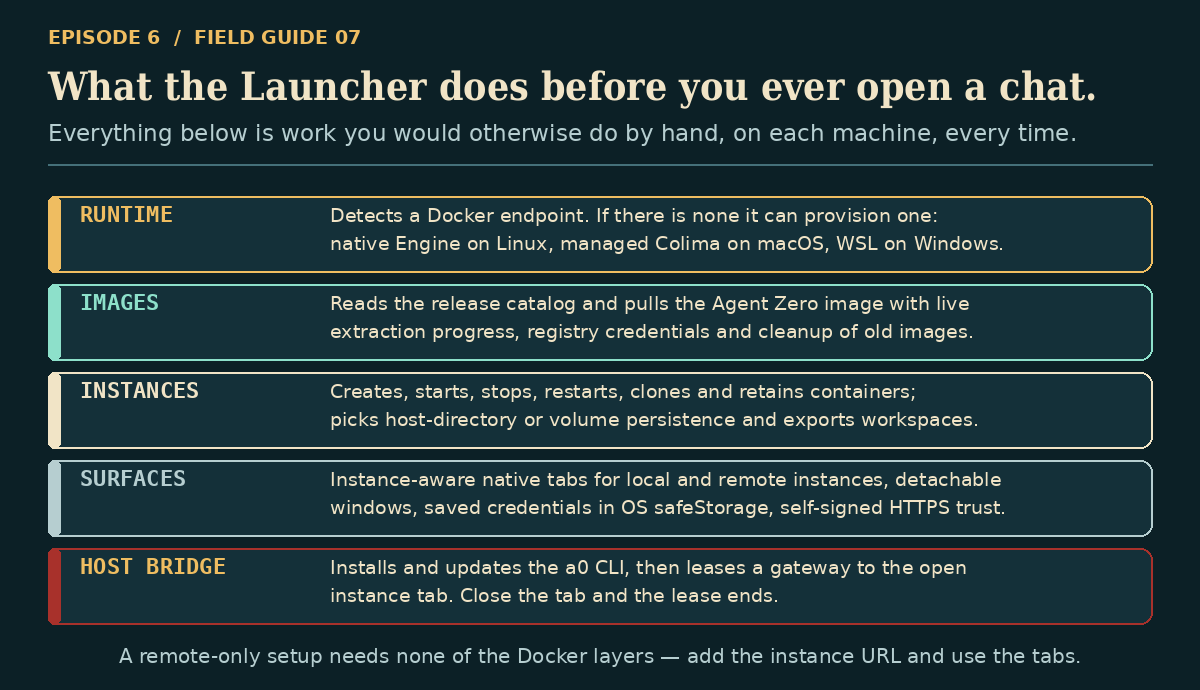
The Launcher: everything before the chat
The connector gives Agent Zero hands. The Launcher gives it a home.
Download the matching architecture from the releases page. Current canonical assets are a0-launcher-<version>-macos-{arm64,x64}.dmg, a0-launcher-<version>-windows-{arm64,x64}.exe (NSIS), and a0-launcher-<version>-linux-{arm64,x64}.AppImage. On Linux:
chmod +x a0-launcher-1.8-linux-x64.AppImage
./a0-launcher-1.8-linux-x64.AppImage
Note that macOS builds are not guaranteed signed and notarized — the project explicitly permits unsigned artifacts when Apple credentials are absent.
What you get for that download:
Runtime provisioning. It detects an existing Docker endpoint, and if there is none it can provision one: native Engine on Linux, a managed Colima profile on macOS (installed under its own app data, no Homebrew required, socket at ~/.colima/a0/docker.sock), or a WSL-backed engine on Windows. Existing contexts — OrbStack, Rancher Desktop, Colima, rootless Docker, Podman — work when their Docker API endpoint is actually running.
Image and instance management. Release catalog, image pulls with live extraction progress, registry credentials, cleanup of superseded images. Create, start, stop, restart, clone and retain containers; choose host-directory or named-volume persistence; export and import workspaces separately from container deletion.
Native surfaces. Instance-aware tabs for local and remote instances, reuse by identity, detachable windows, keyboard shortcuts. Saved instance passwords go through Electron's safeStorage. Self-signed HTTPS gets an explicit host-scoped unknown-issuer exception that still enforces name and date checks — useful to know it is not certificate pinning.
Connector maintenance. On startup it asynchronously checks, installs or updates the a0 CLI for you, using the same public installer scripts. It verifies compatibility by running a0 gateway --help and checking the output advertises --gateway-id, --scopes, file_read and file_write, and probes Core for the launcher_gateway and launcher_gateway_file_write capabilities before spawning anything.
A0 Tag. A default-off global shortcut for supported editable targets or a command-palette workflow. It uses an eligible gateway and a separate tagged chat to bring Agent Zero into desktop work. Capture and text replacement depend on the application/backend; this is not a promise that every app supports them.
Two caveats worth carrying with you. Managed container creation requests 0.0.0.0 publication even though Open UI shows a loopback URL — whether that reaches your LAN depends on Docker forwarding and your host firewall, so do not read the loopback URL as proof of network isolation. And while saved instance passwords use safeStorage, default model settings retain API key strings written directly into state.json without that encryption path.
Launcher setup, from download to first host task
- Download the installer matching your OS and architecture from Releases. Open the DMG/EXE or make the AppImage executable. Node/npm are source-development prerequisites, not a separate requirement for the packaged app.
- For a local instance, select a working Docker-compatible runtime or follow the offered supported setup flow, then choose the Agent Zero image and create/start the instance. Runtime provisioning can require administrator approval or a restart. Inspect persistence and keep backups before replacing existing instances.
- For a remote instance, add the actual server URL instead. You do not need local Docker merely to connect to it.
- Open that instance in a Launcher tab and authenticate if required. Let connector maintenance complete.
- Open its Host access dialog, choose a folder and explicitly set the scopes. Start with Files read; turn Files write and Code execution off. A folder is currently required even for browser/desktop-only scopes.
- For browsing, allow Use my Browser, select a supported detected target, follow its consent instructions, and use Set up browser when offered. Configure Core's host browser mode as described above.
- For native apps, allow Computer Use and follow the OS approval/retry/restart flow. Browser access and desktop access are separate permissions.
- Test one harmless operation: read a known file, retrieve a browser page title, or capture the intended desktop without changing it. Confirm the target really is your computer.
- Use Disconnect to revoke this gateway lease, Reconnect to restore it, or close the owning instance tab/detached window. Reloading a tab does not revoke it. Independent Docker mounts and separately started connectors are unaffected.
Host access controls and gateway lifecycle.
Remote-only: you may not need Docker at all
If your Agent Zero lives on a server somewhere, none of the Docker layers apply. Add the remote instance URL, let the Launcher observe its health and version, give it a tab, and — if you want — opt that remote instance into host access separately. Remote instances deliberately do not inherit the local configured consent. You choose again, per instance.
Which one do you actually need?
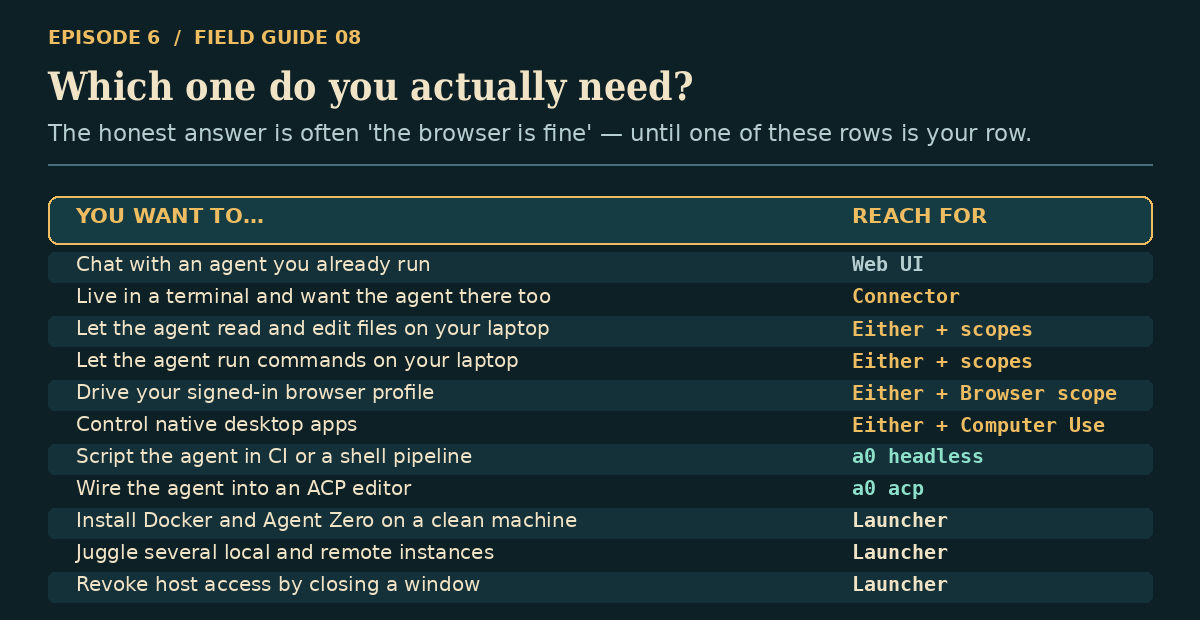
| What you want | Best starting point |
|---|---|
| Chat and use the instance's existing tools | WebUI alone is sufficient |
| Work from a terminal or shell pipeline | Connector TUI or a0 headless |
| Supply host files, shell, browser or desktop capabilities | Connector, directly or through Launcher, with permissions |
| Provision local runtime/images and manage instances | Launcher |
| Organize remote instances without local Docker | Launcher is convenient; normal browser tabs also work |
| Use an ACP-capable editor | a0 acp, with compatible Core ACP support |
Host capabilities may remain usable from a WebUI workflow once an authorized bridge exists. Launcher adds installation, consent and lifecycle management—not a different reasoning engine.
The things that will trip you up
| Symptom | What it actually means |
|---|---|
404 on /api/plugins/_a0_connector/v1/capabilities |
Your Agent Zero build does not include the builtin _a0_connector plugin, or your Core checkout is out of sync. The WebUI runs fine without it; the CLI cannot. |
Connector contract mismatch |
The server advertises an older connector auth contract. Update Agent Zero Core. |
| WebSocket connection rejected | Proxies must forward both /socket.io and /api/plugins/ unchanged, and AGENT_ZERO_HOST must match the host Agent Zero actually sees. If Docker discovery shows localhost, prefer localhost over 127.0.0.1. |
a0 prints No pyvenv.cfg file |
Incomplete uv tool environment, often after an interrupted Windows self-update. Close open A0 CLI windows and rerun the installer; it rebuilds with uv tool install --force. |
| Host browser does nothing | Check /browser status. Remote ensure will not override a locally disabled browser manager — a disabled local switch wins. |
| Computer Use says ready but nothing happens | Readiness and the allowed choice are separate states. Check the specific stage, and use the explicit retry or restart action rather than toggling the saved permission. |
Gateway seems dead but the process exited 0 |
Exhausted connection recovery emits a fatal CONNECTION_LOST while the stop-wait path still returns 0. Do not supervise on exit code alone; read the JSONL. |
The short version
The browser tab was never the limitation — the boundary was. The agent could think about your machine but never touch it, so you spent your day being a very expensive copy-paste buffer between two systems that should have been talking directly.
The connector bridges the boundary without moving the agent runtime. Host operations use your account; results can reach the server and configured model. Grant only what you need. Closing a Launcher-owned instance surface ends its gateway lease; a separately started CLI must be disconnected separately, and Docker bind mounts remain a separate access route.
The Launcher makes that arrangement something you can actually live with: it installs the pieces, provisions the runtime, organizes the instances and holds the lease.
Start small. Install the connector, run a0, and give it read-only access to one project folder. Ask it something about files it can finally see for itself. Then add a scope when — and only when — you hit the wall that needs it.
Read the companion: Use the Remote File Browser—host folders, SMB3, SFTP, WebDAV, FTPS and S3, with exact setup and save-conflict boundaries.